Categories
Basics and How to Blog Uncategorized

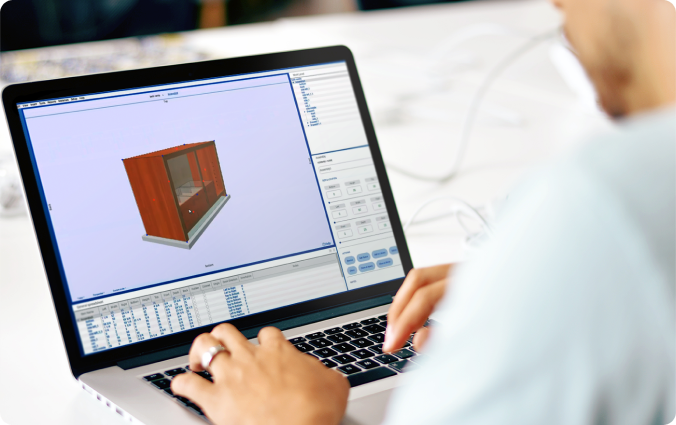
How Cabinet Design Software Is Transforming Woodworking

In the world of woodworking, precision is everything. Whether you’re crafting a custom kitchen, building a bespoke entertainment center, or designing a sleek home office, the difference between a flawless fit and a frustrating redo often comes down to millimeters. For decades, woodworkers relied on hand-drawn plans, physical mock-ups, and trial and error to bring their visions to life. But today, a new generation of tools is reshaping the craft, led by cabinet design software that blends technical accuracy with creative freedom. 

This post examines how cabinet design software is transforming the way professionals and passionate DIY enthusiasts approach cabinetry, from concept to completion. 


What Is Cabinet Design Software? 

Cabinet design software is a specialized digital tool that allows users to plan, visualize, and refine cabinetry projects in a virtual environment. Unlike general-purpose CAD programs, cabinet design software is purpose-built for woodworking. It understands the nuances of cabinet joinery, material thickness, hardware placement, and construction logic. 

Key features typically include: 

  • 3D modeling of cabinets, drawers, doors, and shelving 
  • Material libraries with wood types, finishes, and edge treatments 
  • Cut lists and part breakdowns for efficient fabrication 
  • Dynamic resizing and parametric design to adapt to space constraints 
  • Integration with CNC machines or export to printable plans 

Whether you’re designing a single vanity or an entire kitchen, cabinet design software helps you visualize the final product, catch errors early, and streamline production. 


Why Cabinet Design Software Matters For Woodworkers

Traditional cabinet design workflows often involve a mix of paper sketches, verbal instructions, and manual measurements. While this can work for simple projects, it introduces risk and inefficiency as complexity grows. Cabinet design software eliminates ambiguity by creating a shared visual language between designer, client, and builder. 

Here’s how it transforms each stage of the process:

1. Conceptual Design

Instead of rough sketches, users can build virtual prototypes with precise dimensions and realistic textures. Want to see how cherry wood looks with matte black pulls? Swap materials in seconds. Need to adjust a cabinet height to accommodate plumbing? Just drag and resize.

2. Client Collaboration

Clients often struggle to visualize 2D plans. Cabinet design software bridges that gap with immersive 3D renderings and walkthroughs. This not only improves buy-in but reduces change orders and miscommunication.

3. Production Planning

Once a design is approved, the software generates detailed cut lists, part diagrams, and even CNC-ready files. This minimizes waste, speeds up fabrication, and ensures consistency across builds.

4. Installation Confidence

Installers benefit from precise measurements and exploded views that clarify how each component fits together. No more guessing or retrofitting on-site. 


Smart Cabinet Design Meets Craftsmanship 

One of the most powerful aspects of cabinet design software is its ability to combine algorithmic logic with human creativity. For example, parametric design allows users to define rules, like “all upper cabinets must be 12 inches deep”, and apply them across the project. Change one variable, and the entire design updates intelligently. 

This is especially useful for: 

  • Modular systems with repeating elements 
  • Space-constrained environments like RVs or tiny homes 
  • Custom kitchens with varying appliance sizes 

But software doesn’t replace craftsmanship. it enhances it. Woodworkers still choose joinery methods, select materials, and make aesthetic decisions. The software simply removes the guesswork and lets artisans focus on what they do best: building beautiful, functional cabinetry. 


Choosing the Right Cabinet Design Software 

Not all cabinet design software is created equal. Some are geared toward large-scale manufacturers, while others cater to solo woodworkers or design studios. When evaluating options, consider:

FeatureWhy It Matters

Content

Intuitive interfaces reduce learning curves and speed up adoption
Customization
Ability to define your own cabinet styles, materials, and hardware
Integration
Export options for CNC, PDF, or other fabrication workflows
Support & Community
Tutorials, forums, and customer service can make or break your experience
Cost & Licensing
Some tools offer one-time purchases, others use subscription models

For high-end DIYers and small shops, look for software that balances power with simplicity, something that doesn’t require a CAD degree but still delivers professional-grade results. 

Real-World Impact: Stories from the Shop 

Consider a custom cabinetmaker who specializes in high-end kitchen remodels. Before adopting cabinet design software, each project required hours of manual drafting, client revisions, and on-site adjustments. After switching to a digital workflow, they halved their design time, reduced material waste by 20%, and experienced a noticeable increase in client satisfaction. 

Or take a passionate DIYer building a home office. With cabinet design software, they could experiment with layouts, test different wood finishes, and generate a precise shopping list, all before making a single cut. The result? A polished, professional-looking build that felt tailor-made. 

These stories aren’t rare,they’re becoming the norm. 


The Future of Cabinet Design 

As technology continues to evolve, cabinet design software is poised to become even more powerful. Expect features like: 

  • 3D photo previews that let clients “place” cabinets in their space 
  • Online collaboration for remote teams and client feedback 
  • Sustainability tracking to optimize material usage and reduce waste 

For woodworkers who embrace these tools, the future is bright. Cabinet design software isn’t just a productivity booster, it’s a strategic asset that enhances creativity, improves communication, and elevates the craft. 


Final Thoughts 

Cabinet design software is more than a digital sketchpad, it’s a bridge between vision and execution. Whether you’re a seasoned professional or a weekend warrior, these tools empower you to design with confidence, build with precision, and deliver results that delight. 

In a world where customization is king and efficiency is essential, cabinet design software offers the best of both. It’s time to trade the pencil for the pixel, and unlock a new era of woodworking excellence. 

Ready to experience it for yourself? Explore the free trial and view pricing to see how cabinet design software can elevate your next project.

Categories
Uncategorized

Sizing and Locating Boards

In this article, you’ll learn a few easy ways to resize and locate boards. By using these techniques, you will be able to join boards, fill space with boards, precisely position cabinet shelves, and make any other changes you can imagine.


There are a few main ways to resize or place boards:


  • Dragging and connect dots (with exceptions!)
  • Copy pasting dot values
  • Modifying “the spreadsheet”


  • Dragging and connecting dots


By dragging red dots, you can resize boards. By dragging blue dots, you can move boards around in space.


The best way to use the dots is by Shift + Clicking, which snaps the dots to other boards. For example, “Shift + Click” a blue dot to move your board flush with another, or a red dot to increase the size with a snap to another board.


There are some limitations to this method that might leave you with measurements ending in 13/64. This will be updated in the next version of the program.


Usually, it is best to mix and match dragging with other tools:


  • Copy pasting dot values


Now that you understand the dot system, you can use dot values to connect board corners to each other.


Instead of dragging the dots, right click the target corner. The location of the point will pop up, represented by a few coordinate values. Clicking Copy will copy those values. Right click the corner on the board you want to move, press Paste, and the corners will snap to each other. 


This method is very quick and easy for connecting corners.


  • Modifying the spreadsheet


The spreadsheets operate similarly to the Assembly Calculator (helpful article here). By modifying the dimensions, you can resize the board size and location. 


Keep in mind, the dimensions are basically groups of references for where an object starts, how big it is, and then where it ends. And, when you change one of these values, it needs to change one of the others as well. 


The easiest way to figure this out is to play around with it. Try to make a cabinet just using the general spreadsheet!


This one takes a bit of practice, but it is a very powerful tool when you get the hang of it.


Categories
Uncategorized

Building a Board

After starting a project, you will see a chart with the Assembly Calculator. Assemblies are explained in the assembly article. We’re not going to get into it quite yet. 


From the top, enter Height of 30, then click green Top

Enter Width of 30, then click green Right.

Enter Depth of 30, then click green Back


1) To create a board, click on Boards in the left side menu. 


You’ll see two fields that may cause confusion at first: Thickness of Board and Grain Direction.

  • Thickness of Board tells SketchList which dimension represents the board’s actual material thickness—essentially, which way the board lies flat. The other two dimensions are the board’s standard Height × Width.
  • Grain Direction is used later when generating a cut list so SketchList can determine how the material should be laid out and cut.

For this example, we’re making a side board for a cabinet.

In this case, the Board Thickness = Width, so enter the thickness of material under Width (probably ¾ if you’re using standard Beech).

Then, just enter the board’s Height and Depth as its main dimensions, and you’ve created your first board!


_____________________________________________________________________________________

PS: “Locate Your Board” sets the board’s bottom-left corner within the assembly. It’s optional—many users find it faster to position and resize the board once it appears, using the tools on screen:

  • the spreadsheet-style panel (will make more sense after learning about Assemblies)
  • draggable dots, (shift click blue to snap to other objects, shift click red to resize)
  • or right-clicking dots: right click the dot you want to connect to, copy values, and paste to the dot you want to be connected

Experiment with the different methods to explore the different options.

Categories
Uncategorized

Creating Assemblies

The Assembly Creation screen may look complex at first, but it becomes intuitive quickly—especially for smart woodworkers like yourself. 


Assemblies are the core building blocks in SketchList. Once you fill them up with boards, they can be cloned, resized, moved around, and saved to your library for future projects.


Also, the same logic is used in the spreadsheet function for boards at the bottom of the screen. 


The Assembly Calculator defines three dimensions: Width, Height, and Depth. Each dimension is further defined by three numbers.

All three numbers are distances measured from the same origin — the left side (for width), the bottom side (for height), or the front side (for depth).

For example, for Width, the three boxes refer to:

  • Left = distance from the assembly’s left edge to the board’s left edge.
  • Width = how wide the board is.
  • Right = distance from the assembly’s left edge to the board’s right edge.

So Left + Width = Right

Equivalent rules apply for:

Height: Bottom + Height = Top  

Depth: Front + Depth = Back

____________________________________________________________________________

When you change Width, Height, or Depth, SketchList needs to know which side of the object should move. The Assembly Calculator shows this by turning the affected dimensions into green buttons. Clicking one tells SketchList where the adjustment should come from.


Example: Your assembly has Bottom: 10 Height: 20 Top: 30

You change Height from 20 → 30.

Now Bottom and Top turn green—because either the bottom or top must shift to accommodate the new height.

  • Click Bottom → SketchList lowers the object:
    Bottom: 0 Height: 30 Top: 30
  • Click Top → SketchList raises the top:
    Bottom: 10 Height: 30 Top: 40


Categories
Uncategorized

Fireplace Design to Make Money

fireplace design

From Sketches to Surrounds: How Fireplace Designs Turned an Idea into a Growing Business

I want to share a story close to my heart—our journey from a simple idea to a thriving business, all sparked by a simple question and a bit of digital magic for fireplace design.

The Unexpected Beginning

It all started with a casual comment on a job site. My husband, a finish carpenter, had crafted a fireplace surround for a home remodel. One day, a friend stopped by, admired the work, and asked, “How much would you charge me for something like that?”

At first, he thought it was a joke. But his friend was serious. He was remodeling his den and wanted something similar.  He wanted to see our fireplace designs.  The truth is we had no designs, but that conversation planted a seed.

Taking the Leap

That evening, over dinner, we talked about the possibility of turning this idea  into something more. He had always dreamed of running his own business, but the risks felt daunting. After some back and forth, we decided to do it. He would build the fireplace surround for his friend, and we’d see where it led.

Not long after, another person approached him with a similar request. Word was spreading, and we soon got calls from all over. What started as a weekend project quickly turned into a full-fledged endeavor.

The Design Challenge

As demand grew, so did the complexity of our designs. Each fireplace surround was unique, with intricate details like corbels, moldings, and columns. I have an artistic background, so I took on the woodworking design work. But using basic apps for woorking design, tools like Microsoft Paint and Excel was time-consuming and limiting.

We needed something better.

Discovering SketchList 3D

That’s when we found SketchList 3D. Unlike other fireplace designs software, SketchList was intuitive and tailored for woodworkers. I could create 3D models, adjust dimensions, and visualize the final product—all in one place.

The best part? I could save components like columns and moldings into a library, making future designs faster and more efficient.  Really, there are just a handful of stock items make up most of a job’s fireplace design.

Streamlining the Process

With SketchList 3D for our fireplace design, I could quickly generate and share designs with clients. They could see exactly what their fireplace surround would look like, leading to quicker approvals and fewer revisions.

Production became more streamlined too. While we considered investing in a CNC machine, we were hesitant about the cost. Instead, we partnered with local job shops that offered CNC services, allowing us to maintain quality without the hefty investment.

Reflecting on the Journey

Looking back, it’s incredible to see how far we’ve come. It’s been a rewarding journey from a simple request on a job site to a business that’s brought us joy and fulfillment.

SketchList 3D played a pivotal role in our success. It transformed our fireplace design process, saved us time, and helped us deliver high-quality results to our clients.

If you’re a woodworker looking to streamline your design process, I highly recommend trying SketchList 3D’s woodworkign design software. It might be the tool you need to take your craft to the next level.

See more on fireplace design.

“`

Categories
Uncategorized

Cabinet Making Software: Addressing Your Pain

cabinet making software

The Cure for a Custom Woodworker’s Headaches

Running a woodworking business isn’t just about crafting beautiful pieces—it’s about juggling time, precision, and client demands while striving to stay profitable. Every miscalculation, delay, and unclear drawing chips away at your confidence, income, and reputation. Cabinet making software is the solution.

SketchList 3D was built to change that.

It’s design software created by woodworkers, for woodworkers. And it doesn’t just make your designing easier—it helps you avoid the emotional stress and financial losses that pile up when the design process goes wrong.

Here’s how SketchList 3D addresses the core pain points that wear down woodworkers—and how it helps you reclaim time, reduce stress, and protect your profits.


1. Design Takes Too Long

The Problem:

Whether you hand-draw or struggle with generic CAD tools, creating custom designs takes hours you don’t have.

The Impact:

You lose evenings, weekends, and your ability to take on more paying jobs.

✅ SketchList Solution:

Designs combine swiftly with drag-and-drop functionality, parametric resizing, and woodworking-specific tools. What once took days now takes hours—or less.

“It used to take me four hours to sketch and quote a kitchen layout. Now I do it before lunch. I can actually take on more jobs without burning out.” – Brian M., Custom Cabinet Maker

2. Mistakes Found at the Assembly Start in the Plan

The Problem:

A wrong number in your measurements leads to cut errors, wasted materials, and rework.

The Impact:

You bear the cost—or worse, miss a deadline. That hits your wallet and your credibility.

✅ SketchList Solution:

All dimensions are calculated in real-time. When you change one part, everything else adjusts automatically, including all reports. You catch errors on-screen instead of in the shop.

“A single wrong cut used to cost me $100 in time and materials. SketchList eliminated that.”

3. Clients Can’t Picture What You Mean

The Problem:

A flat sketch doesn’t help people visualize the final result. A verbal description is even worse.

The Impact:

Endless back-and-forth, indecision, and change orders kill momentum—and your schedule.

✅ SketchList Solution:

Photorealistic 3D renderings with our cabinet making software help your client say “yes” faster. That means faster approvals, better communication, and fewer mid-build surprises.

“Clients stopped second-guessing me. Once they see it in 3D, they’re sold.”

4. Revisions Derail Your Workflow

The Problem:

One small client change forces hours of redrawing and recalculating.

The Impact:

It kills your momentum, delays your schedule, and consumes unpaid time.

✅ SketchList Solution:

Change a single dimension, and everything updates: parts, cut lists, layouts. You stay flexible without losing time.

5. CNC Integration is a Pain

The Problem:

Redrawing your design in CNC software is tedious and error-prone.

The Impact:

More time, more mistakes, more stress, and production delays.

✅ SketchList Solution:

Export cleanly into CNC-compatible formats like Aspire. You pass the DXF file directly from your design—no rework required.

6. Bidding Feels Like Guesswork

The Problem:

Without precise material and time estimates, quotes are risky.

The Impact:

You underbid and lose money—or overbid and lose the job.

✅ SketchList Solution:

Automatically generate part lists, board feet totals, and cost breakdowns. Bid confidently, price competitively, and protect your profit margins.

7. CAD Software Feels Like a Foreign Language

The Problem:

Most design software is made for engineers, not craftspeople.

The Impact:

It’s intimidating, frustrating, and slows down your process.

✅ SketchList Solution:

It speaks your language—boards, joints, assemblies, and materials. You don’t need a CAD degree—just woodworking experience.

8. Disorganization Creates Chaos

The Problem:

You’re juggling boards, measurements, revisions, and client notes across scraps of paper or multiple apps.

The Impact:

Something always slips through the cracks—and you pay for it.

✅ SketchList Solution:

Everything’s in one place: design, reports, cut lists, layouts, and materials. It’s organized and accessible, so you stay in control.


When You Lose Time, You Lose Money

Let’s face it—when you spend hours redrawing plans, fixing mistakes, or revising quotes, you lose more than time. You’re losing:

  • ? Income from missed or underpriced jobs
  • ? Opportunities to grow your business
  • ? Confidence when errors start adding up
  • ? Peace of mind from working late nights to fix preventable problems

SketchList 3D Is More Than a Tool. It’s Your Time Saver, Profit Protector, and Sanity Preserver.

When your software understands your craft, everything changes. You work smarter, quote faster, impress clients, and keep jobs on schedule and under budget.

If woodworking is your passion and profession, SketchList 3D was built for you.

More information about SketchList.

See opinions of other woodworkers.

Ready to Take the Stress Out of Your Workflow?

person looking at screen

Categories
Uncategorized

Woodwork Planning: Three Use Cases


Unlocking the Full Potential of SketchList 3D: The Ultimate Woodwork Planner for Designing, Selling, and Building with Ease

Computer Screen with woodworking CAD software

Every woodworker, designer, and craftsperson approaches their projects differently. Some begin with broad conceptual designs, others focus on creating compelling proposals to win jobs, while many rely on detailed reports and shop drawings to streamline their building process. Regardless of approach, the right woodwork planner can make all the difference.

SketchList 3D is more than just woodworking design software—it’s a powerful, all-in-one woodwork planner that bridges concept development, sales presentations, and shop preparation seamlessly. Whether you need visualization tools, polished client proposals, or precise cut lists for production, SketchList 3D adapts to your needs without requiring separate processes or software.

Let’s examine the three primary user groups and how SketchList 3D serves as their ultimate woodwork planner.


1. Exploring Design Ideas and Concepts with a Woodwork Planner

Creativity is at the heart of woodworking, whether crafting a custom woodworking, cabinet, designing furniture, or laying out a full interior build. Having an intuitive woodwork planner is essential for users who prioritize brainstorming and exploring ideas.

How SketchList 3D Supports Concept Development:

  • 3D Modeling in Real Time: Users can quickly draft designs in a fully interactive 3D space instead of static drawings, adjusting dimensions and materials dynamically.
  • Drag-and-Drop Simplicity: Easily manipulate design elements—adjust sizes, swap materials, and reposition components without tedious rework.
  • Instant Visual Feedback: Rotate, zoom, and modify designs in a photorealistic environment to assess feasibility and aesthetics before committing to build.
  • Material Selection and Experimentation: To refine the final concept, compare various wood types, finishes, and structural layouts.

For those who prefer to refine ideas before moving into detailed planning, SketchList 3D offers the flexibility to experiment without being bogged down by technical specifications too early. As we’ll see, the same conceptual designs can easily transition into sales proposals and shop-ready documents—all within one powerful woodwork planner.


2. Crafting Professional Proposals to Sell Jobs

For many cabinetmakers, furniture designers, and contractors, winning a project depends on their ability to present their ideas effectively. A well-organized woodwork planner allows professionals to create detailed and persuasive proposals easily.


people aroudn computer signing deal woodwork plan

SketchList 3D as a Sales Tool:

  • Photorealistic Renderings: Generate high-quality images of proposed designs to present clients with a polished, professional vision.
  • Automated Dimensioning: Provide precise measurements in visually appealing layouts, helping clients understand exactly what they’re getting.
  • Dynamic Revisions: Quickly adjust designs based on client feedback without starting from scratch.
  • Instant Pricing Calculations: Generate estimated material costs based on design parameters, eliminating guesswork and speeding up the sales process.
  • Proposal-ready Reports: Export shop drawings, material lists, and other technical documents in a clean, presentable format that reassures potential customers.

For sales-driven users, SketchList 3D transforms rough ideas into convincing proposals that boost credibility and improve conversion rates. The best part? The same files created for design exploration are seamlessly converted into polished client-ready presentations—no rework is needed, thanks to the power of this all-in-one woodwork planner.


3. Generating Detailed Reports and Shop Drawings for Production

Once a project is approved, precision becomes the priority. SketchList 3D is a robust woodwork planner, equipping users with all the documentation needed to build efficiently and accurately, ensuring fewer mistakes and smoother workflows.

SketchList 3D as a Shop Production Tool:

  • Precise Cut Lists: Automatically generate lists of required materials with exact measurements, minimizing waste and maximizing efficiency.
  • Shop Drawings with Dimensions: Provide detailed technical drawings for manufacturers and builders, ensuring accurate construction.
  • Joinery and Assembly Details: Clarify and capture every build component, from joints to fastening methods.
  • Interactive 3D Views: Allow shop workers to visualize final assemblies in 3D, improving clarity and reducing confusion.

For builders who rely on technical accuracy, SketchList 3D eliminates uncertainty by providing comprehensive documentation that ensures smooth execution on the shop floor. Just as it helps designers and sales professionals, this advanced woodwork planner supports production teams without requiring extra steps or external software.


SketchList 3D: The Woodwork Planner That Does It All—Simultaneously

What sets SketchList 3D apart is its ability to bridge the gap between these three distinct needs in a single, integrated woodwork planner. Users don’t have to shift between different software or redo their work for each phase. Instead, SketchList 3D builds a connected experience where:

  •  Design exploration transitions effortlessly into sales proposals
  •  Sales proposals become instantly usable as production documents
  •  Production documents retain flexibility for revision and optimization

There’s no separation between designing, selling, and building—it all happens within the same software environment, reducing errors, saving time, and improving efficiency.


Why Every Woodworker Needs a Reliable Woodwork Planner

For new users, there’s no need to master three different workflows—SketchList 3D handles everything intuitively within a single process. Experienced users appreciate the ability to refine their projects fluidly, whether sketching out ideas, perfecting proposals, or setting up shop production.

By eliminating traditional barriers between concept, sales, and execution, SketchList 3D makes it easier than ever to design smarter, sell better, and build faster—all with the support of a powerful woodwork planner.

Now, if you’re ready to experience SketchList 3D’s power, start your free trial today and streamline your entire woodworking workflow.

You may be interested in a logbook for your work.  This looks interesting.


Categories
Uncategorized

Woodwork planning is a logical step to success

fireplace design

So many people evaluating SketchList 3D as their cabinet design software choice skip this step.  They have an idea – even a good idea with dimensions and such – and want to turn it into a cut list or optimize the material layouts.  There is a step missing here.   Woodwork planning is critical and should be an active part of your creating your project.

Woodworking planning is a critical step in any project, ensuring efficiency, precision, and a successful outcome. Whether you’re a seasoned carpenter or a DIY enthusiast, taking the time to plan your woodworking project can save you from costly mistakes and wasted materials. Here’s a detailed look at the method and importance of woodworking planning.

The Importance of Planning

  1. Efficiency:

    • The process of woodwork planning streamlines the workflow, saving time and effort. It reduces the chances of rework and ensures you stay on track.
  2. Cost-Effectiveness:

    • Planning helps you estimate the required materials and avoid over-purchasing. It also minimizes waste, making your project more economical.
  3. Precision and Quality:

    • Detailed planning ensures accurate cuts and measurements, resulting in a polished and professional-looking final product.
  4. Safety:

    • Identifying potential hazards and planning for safe tool usage reduces the risk of accidents during the project.
  5. Satisfaction:

    • Completing a project that matches your vision is immensely satisfying. Planning ensures the result aligns with your expectations.

One Method of Planning

  1. Define the Project Scope:

    • Start by clearly outlining what you want to build. A clear vision is essential, whether it’s furniture, cabinetry, or a decorative item. Sketch your ideas or use woodworking design software like SketchList 3D to represent your project visually.
  2. Measure and Assess the Space:

    • Accurate measurements are crucial. Measure the space where the finished piece will be placed and ensure your design fits perfectly. This step helps avoid resizing or redesigning mid-project.
  3. Choose Materials:

    • Select the type of wood and other materials you’ll use. Consider factors like durability, aesthetics, and cost. Hardwoods like oak and maple are great for furniture, while softwoods like pine are ideal for decorative projects.
  4. Create a Cut List:

    • Create & Optimize a cut list via detailed breakdown of all the pieces you’ll need, including their dimensions. This helps you optimize material usage and minimize waste.
  5. Plan the Joinery:

    • Decide on the type of joints you’ll use, such as dovetail, mortise and tenon, or pocket screws. The choice of joinery affects the strength and appearance of your project.
  6. Gather Tools and Supplies:

    • Ensure you have all the necessary tools, such as saws, drills, clamps, and sanders. Also, stock up on adhesives, screws, and finishes.
  7. Create a Timeline:

    • Break the project into manageable steps and set a timeline for each phase. This will keep you organized and ensure steady progress.
  8. Test and Adjust:

    • Before cutting into expensive materials, test your design and measurements on scrap wood. Make adjustments as needed to perfect your plan.

In conclusion, woodworking planning is the foundation of any successful woodworking project. After investing time in planning, use woodowrk planning software, such as Sketchlist 3D, to create a virtual idea model.  The planning is your foundation, and SketchList 3D is the bridge.

A well-thought-out bridge built on a solid foundation will set you up for a smoother process and a more rewarding outcome. Whether crafting a simple shelf or an intricate piece of furniture, planning is the key to turning your vision into reality.

Check this article out https://www.bessemeter.com/blog/plan-your-woodworking-project-101/?unapproved=5922&moderation-hash=75a33566a85534e12079ec832ad7b395#comment-5922

Categories
Uncategorized

Effective woodworking techniques with modeling software

effective woodworking technique

Crafting Success: How Woodworkers Harness SketchList 3D for Effective Woodworking Techniques

Precision and planning are paramount in woodworking. Digital tools have revolutionized how artisans conceptualize and execute their projects. Among these tools, SketchList 3D has emerged as a favorite, offering woodworkers an intuitive platform to bring their visions to life. This article delves into the experiences of professionals who have integrated SketchList 3D into their workflows, highlighting how it enhances effective woodworking techniques.

Embracing Digital Design: A Game Changer for Woodworkers

Traditionally, woodworking relied heavily on manual sketches and physical prototypes. While these methods have their charm, they often lead to material wastage and extended project timelines. Integrating digital design tools like SketchList 3D addresses these challenges by providing a virtual environment where woodworkers can meticulously plan every detail before making a single cut.

User Testimonials: Transforming  Visions into Reality

“SketchList is, without a doubt, the easiest-to-use design software I have ever encountered. It only took an hour or so before I semi-mastered the basics.”David DiskoSketchList3D

David’s experience underscores the software’s user-friendly interface, allowing even those with minimal drafting skills to quickly adapt and start designing.

“I am very happy that I found SketchList. After trying some CAD programs and SketchUp I found they weren’t optimized for woodworking. This software does the job and makes it easy.”Rick CliffordCraftisian+2SketchList3D+2Reddit+2

One of the standout features of SketchList 3D is its ability to produce detailed cut lists and material layouts. This functionality ensures that woodworkers can optimize their resources, reducing waste and saving costs. Moreover, the software’s 3D visualization capabilities allow users to identify potential design issues early in the planning phase, mitigating costly mistakes during construction.G2+2Capterra+2SketchList3D+2

“The parts list and cut sheets are invaluable to me in the shop. The amount of build time has decreased while the accuracy has increased.”Roger QualheimSketchList3D

Roger’s insights emphasize how SketchList 3D streamlines the building process, leading to more accurate and efficient project execution.

I want to buy it now!

Bridging the Gap Between Design and Execution

woodworker with hammer

For many woodworkers, conveying design ideas to clients or team members can be challenging. SketchList 3D addresses this by offering realistic 3D renderings, facilitating more transparent communication, and ensuring all stakeholders understand the project’s outcome.

“I have been able to give my customers views of their projects before I build them (much better than hand drawing them).”Tom GordonSketchList3D

Tom’s experience showcases the software’s capability to enhance client relations through detailed visual presentations.

Community Feedback: A Testament to Effectiveness

The woodworking community has been vocal about the advantages of integrating SketchList 3D into their practices. Discussions on platforms like Reddit and woodworking forums reveal a consensus on the software’s efficacy.

“I tried using SketchUp a few times, and I always got frustrated with it… Decided to give SketchList a try… it kept me going.”Reddit UserSawmill Creek+2Reddit+2Craftisian+2

This sentiment reflects a broader appreciation for SketchList 3D’s intuitive design, which resonates with both novices and seasoned woodworkers.

Continuous Improvement: Adapting to User Needs

SketchList 3D’s development team has demonstrated a commitment to refining the software based on user feedback. This iterative approach ensures that the tool evolves in tandem with the changing needs of the woodworking community.

“SketchList stands behind their product like very few companies do! They offer an incredible service.”Scott BeckerSketchList3D

Scott’s testimonial highlights the company’s dedication to customer satisfaction, a crucial factor in the software’s widespread adoption.

Conclusion: A Tool That Elevates Craftsmanship

Good plans, drawings, and reports are your guide to effective woodworking techniques.

Integrating SketchList 3D into woodworking practices exemplifies how technology can enhance traditional crafts. SketchList 3D empowers woodworkers to refine their techniques, optimize resources, and achieve precision in their projects by offering a platform that combines ease of use with powerful features. As user testimonials and community feedback suggest, this software has become invaluable, transforming visions into tangible masterpieces.SketchList3D

In the ever-evolving landscape of woodworking, tools like SketchList 3D play a pivotal role in bridging the gap between artisanal skills and modern technology, ensuring that the art of woodworking continues to thrive in the digital age.