Categories
Design Suggestions

Incorporating Glass Panels in Your Cabinet Designs

Are you interested in incorporating glass panels into your cabinet design software but unsure how to go about it?

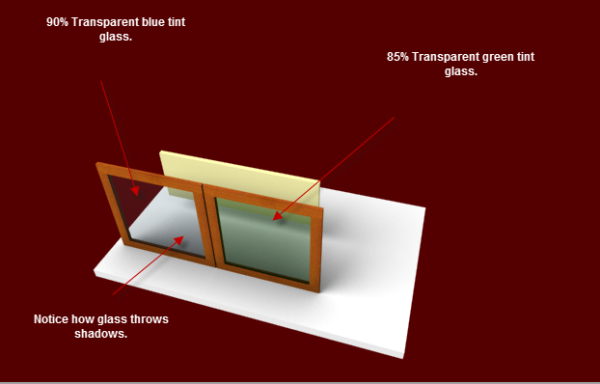
SketchList 3D allows you to use panels in cabinet designs by creating a material and setting the transparency percentage. You can choose the color of the glass by selecting the color of the material from the color list. To give you an idea of how glass can be used in your designs, let’s take a look at an example of glass front doors.


sample glass doors


Incorporating Glass Panels in Your Assembly

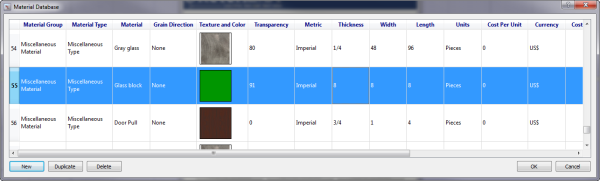
Let’s say we have two different types of glass panels, one blue and the other green, used with transparencies set at 80% and 91%, respectively.    Insert The glass panels become and inserted as “boards” in the assembly. The glass serves as the material for that board. You can contour or shape the glass to fit your design needs. You can even shape different pieces of glass to create a stained-glass effect.


glass defintion


Experimenting with Different Design Elements

You can vary the color of the glass, the percentage of transparency, the background color, and the angle from which the 3D rendering to create different looks for your designs. The angle of the 3D rendering affects the look of the design due to the differing shadows cast by the light source. SketchList 3D allows you to experiment with all these design elements until you achieve the desired result.


Expanding Your Design Options

SketchList 3D does more than cabinet design software. You can use the software to create designs using any material, whether it’s glass, metal, plastic, or any other material. With SketchList 3D, you have the freedom to create designs that truly reflect your creativity.

One interesting post here.

In Summary

Are you looking to incorporate glass panels into your cabinet designs? SketchList 3D cabinet design software is a great option. With its user-friendly interface and ability to work with various materials, SketchList 3D meets your unique needs.

Categories
Blog Uncategorized

Cabinet Design Software – clone function

Cabinet Design Software – using the clone functions to save time

 SketchList 3D cabinet design software  allows you to make exact copies of any object in your project by using the clone function. The clone function saves time by allowing you not to redesign the same part over and over again. (Somewhat related to this idea is the SketchList standard library where you can create an object design and save it for use in other places.) Imagine making a detailed cabinet with many shells, doors, and drawers and having to re-create that board by board each time. It’s much more efficient to simply select that assembly and clone it.

There are three types of clone within SketchList 3D.


  1. Clone – this makes an exact copy of the object highlighted.
  2. Clone and space – this makes any number of copies of the object. In addition it allows you to space the copies from bottom to top, left to right, or front to back.
  3. Clone and mirror – this allows you to make a copy of an object in mirror it 180° left or right.

There are different ways of initiating the clone command.
clone form

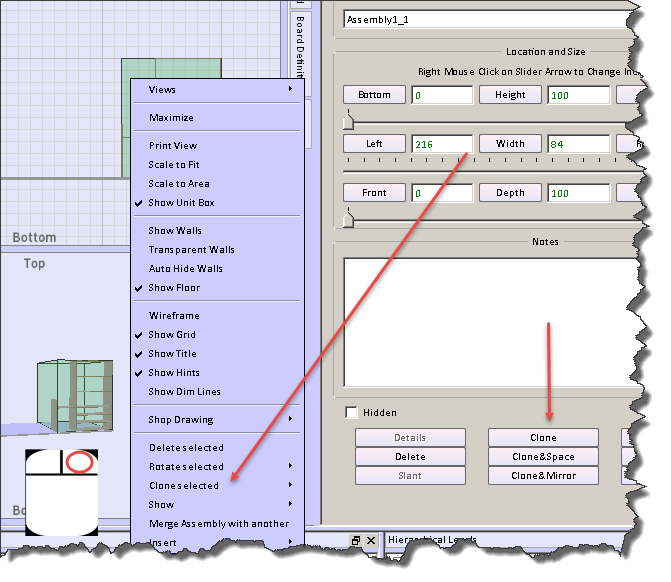
  • There is a clone button on the object form to the right of the SketchList 3D main screen
  • Right clicking the object opens a menu from which you can select the clone sub-menu. On that sub-menu you can pick any of the three clone techniques.
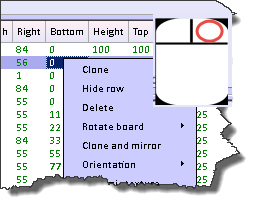
  • Right clicking a row in the spreadsheet will open a menu from which you can select the type of clone you desire.
 

clone sh

Cloning makes an exact copy of the original object. In the general spreadsheet you’ll notice the row is highlighted with the gold background. This means that an object has been cloned but not yet changed. This highlighting helps you see that there are indeed two objects in exactly the same space. When you change the name of the cloned object the gold highlighting will go away.

Usually the next step is to relocate the cloned object.

Clone and mirror makes a copy of the original object but inverts it left to right. If you had a bookshelf on the left of an assembly and drawers on the right cloning and mirroring would result in the second assembly where the drawers would be on the left and the bookshelf would be on the right.

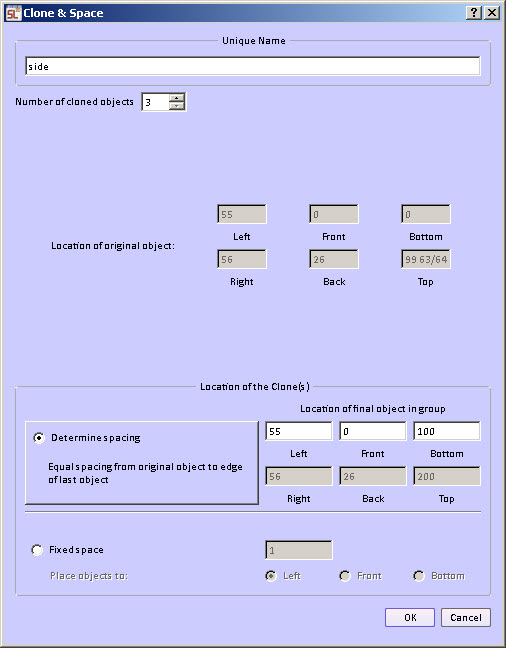
Clone and space makes one or more copies of the original object. Objects may be clone and space in any of three directions – bottom to top, left to right, front to back.
form for clone and space

There are two different ways to do the spacing.

Fixed space between the cloned objects.  The space between, for example, the tops of shelves         and the bottom of the next shelf are equal for all pairs of shelves in the group. This way you can determine that the spacing between two objects would be a fixed amount, for example 10 units.

 Variable space between cloned objects. The space between the objects is calculated over a span you specify. The beginning of the span is the original location of the selected object. You enter the end of the span.   The ending of the span is set to the inside edge of the last object.   For example if a bookcase height is 100 units and the thickness of the shelf is one unit the ending span would be set to 99. The form provides a calculation to show the top, right, back edge of the last copy of the object.

In fact with the variable spacing option you can clone and space the boards in more than one direction. In the example below the boards were cloned and then spaced in all three directions. This provides a bit of a staircase functionality in SketchList 3D.

multi direction clone

Clone and space capability also exists within the round a non-round hole functions of SketchList 3D.  In that case you can select a hole and clone and space it.  [More later]

Watch the video.

Categories
Blog Uncategorized

Cabinet Design – grain, orientation, and materials

Cabinet Design Software – using board definition  tab to change grain, orientation and materials.

Creating a new board in SketchList 3D cabinet design software establishes a definition of that board that contains information about the orientation (what it looks like from the front of the assembly), grain direction, material type (for example sheet or dimension lumber), and material (species or appearance).

There are times when you may want to change some aspect of that definition.

To do that click on the board definition tab on the right side of the SketchList 3D cabinet design software main form.

 board defintion tab

 That opens the board definition form.  The current values for that board are already set in the form. If you want to change any just click an alternative value.

You may change any or all of four elements of the definition.

  1. Orientation – the way the board looks from the front of the assembly. This is really setting the board thickness so one SketchList 3D runs the Optimizer it knows how to lay this board onto the source material.
  2. Grain direction – the direction of the grain. The option any essentially means you don’t care.
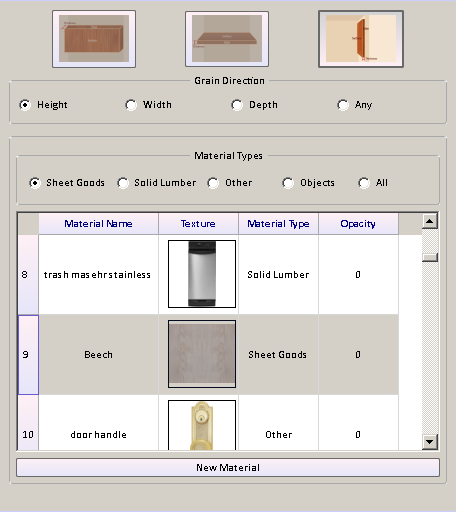
  3. Material type – usually sheet goods or solid lumber, but there are other types of material such as glass, leather, or metal to name a few. There are also objects as a material type. In this category you may have stored an image of a refrigerator for example.
  4. Material – this is the name and the visual appearance (grain image) of the material you’re choosing for this board.


board definition form


When you’re finished adjusting that board definition move your cursor off of the new board form and it will close.

Watch the video.

Cabinet Design Software – using board definition tab to change grain, orientation and materials.

Creating a new board in SketchList 3D cabinet design software establishes a definition of that board that contains information about the orientation (what it looks like from the front of the assembly), grain direction, material type (for example sheet or dimension lumber), and material (species or appearance).

There are times when you may want to change some aspect of that definition.

To do that click on the board definition tab on the right side of the SketchList 3D main form.

board definition tab

That opens the board definition form. The current values for that board are already set in the form. If you want to change any just click an alternative value.

You may change any or all of four elements of the definition.

Orientation – the way the board looks from the front of the assembly. This is really setting the board thickness so one SketchList 3D runs the Optimizer it knows how to lay this board onto the source material.
Grain direction – the direction of the grain. The option any essentially means you don’t care.
Material type – usually sheet goods or solid lumber, but there are other types of material such as glass, leather, or metal to name a few. There are also objects as a material type. In this category you may have stored an image of a refrigerator for example.
Material – this is the name and the visual appearance (grain image) of the material you’re choosing for this board.

board definition form

When you’re finished adjusting that board definition move your cursor off of the new board form and it will close.

Watch the video.

Categories
Blog Uncategorized

Built in Storage – Design and Built to Fit

Built in storage saves space and hides junk…

Built in storage, bookcase, and entertainment centers are really in demand.  Either for your personal use, or by the request of a prospect – these units are hot.  They are perfect for SketchList 3D because they tend to be large and complex, offer opportunities to use objects from the library, and tend to be a design and copy type of project.  A while back a survey showed us that nearly 60% of SketchList  3D users had designed at least one built in storage unit with the software.

This is a great example of the type of built in storage I’m talking about.   It rescues a lot of room area from a more or less otherwise hard to use corner of this bedroom.  And yet it fits in perfectly.  Why?

The ability to design on the computer provided the ability to try and try again with different approaches.  The ability to show such great details [angled corners, molding on top. drawer fronts] at the design stage gives you a sense of what you will accomplish.

Beyond the design stage go the reports and drawings necessary to pull the finished work off.

Well heck – let me share the email from this SketchList 3D user with you.

“Just wanted to send you some of the pictures of the built-in that I designed using SketchList 3D.  This was probably the largest most complex project I ever attempted and knew that I needed some drafting help.  I purchased SketchList 3D and began designing.  I don’t think there would have been any way for make all the design changes and construction details without SketchList 3D.  What was really great was the program which optimized and laid out the cutting diagrams for all of the sheets of plywood.  Rather than having to cut the 4 x 8 sheets of plywood in my small shop, I just gave them to my supplier who cut everything to size.  So for a small fee, I was able to save hours of wrangling large sheets of plywood into about 100 different pieces.  Thanks again for a wonderful product.”

What a great concept – asking the lumber yard to cut the sheets.  I am getting too old to ‘wrangle’ 4 x 8 sheets around anymore.

Thanks for the nice feedback Mike!  Question – will the dog let you pass?

If you have a design to share – send in a photo[s] and let me know what you’ve accomplished.