

Parametric Design vs CAD: In the world of design, particularly in fields such as woodworking, architecture, and manufacturing, the tools and techniques you choose can significantly affect the outcome of your projects. While the terms drawing, CAD, and 3D modeling may sometimes be used interchangeably, they each have distinct characteristics and applications that can serve different needs. Let’s dive into the differences and see how each method can benefit your design process.
Drawing (2D)
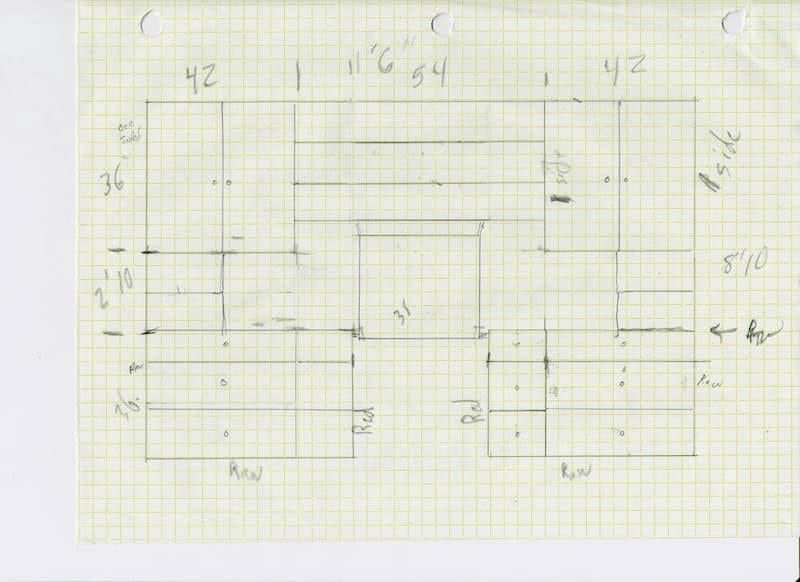
- Drawing is the traditional method of creating flat representations of objects by hand with paper and pencil or digitally using software like AutoCAD in 2D mode.
- It provides a clear view of an object through flat views such as top, front, and side elevations. Think of it as the foundational step in visualizing your ideas.
- One of the most significant drawbacks of traditional 2D drawing is the lack of depth or volume, making it challenging to visualize complex designs.
- Picture a blueprint for a cabinet, clearly showing the height, width, and depth dimensions but without a view of how those elements come together in three-dimensional space.

CAD (Computer Aided Design)
- 2D CAD (like AutoCAD 2D): This functions more like a digital drawing with tools for enhanced precision.
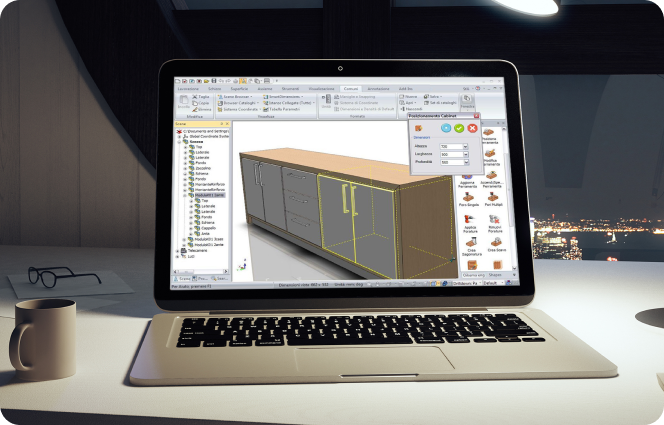
- 3D CAD (like SolidWorks and Fusion 360): This brings depth into the mix but often involves complex workflows that might require a steeper learning curve.
- Presents a digital way to create precise technical drawings or 3D models.
- It’s widely used in engineering and architectural designs, integrating measurements, materials, and technical specifications into the plans.
- Traditional CAD programs can be quite complex and sometimes demand solid technical knowledge, which can be challenging for beginners.
- Think of a CAD plan of a kitchen cabinet, complete with cut lists and detailed joinery specifications. This can be exceptionally helpful in ensuring accuracy before you even start working with your materials.
3D Modeling
As the name suggests, 3D modeling focuses on creating three-dimensional representations of objects that can be visualized from any angle.
- Primarily aimed at enhancing visualization, prototyping, and realistic representation of designs.
- More straightforward to visualize compared to 2D CAD.
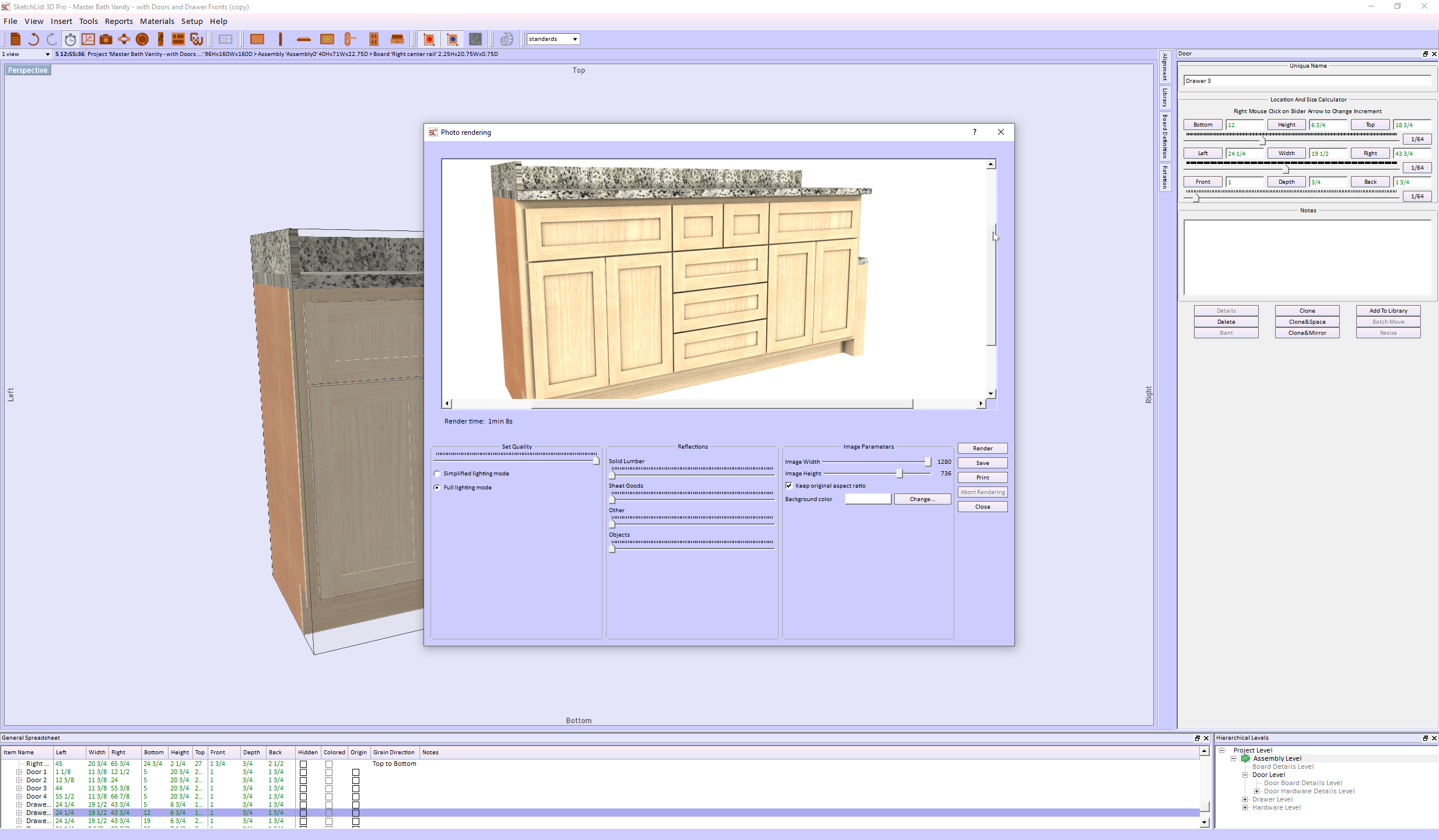
- Ability to simulate materials, textures, and lighting realistically.
- Some software can generate reports automatically, such as cut lists and material layouts.
Example: Picture a 3D cabinet model that allows you to rotate, zoom, and see how each part fits together. This will give you a complete understanding of your project before making cuts.
Summary of Differences
|
Feature |
Drawing (2D) |
CAD | 3D Modeling |
| Dimension | 2D | 2D & 3D | Fully 3D |
| Ease of Use | Easy | Can be complex | Easier than CAD for visualization |
| Visualization | Flat views | Some 3D features | Fully interactive models |
| Best for | Simple plans layouts | Engineering, technical design | Concept design, woodworking, furniture making |
Parametric Design vs. CAD Drawing: Which is Best for Woodworking?
Choosing the right software in woodworking design can mean the difference between efficiency and frustration. Traditional CAD drawing and parametric design are two common approaches, but they serve different purposes. Parametric Design vs. CAD is a key distinction. If you’re a woodworker looking to streamline your workflow and improve accuracy, understanding these methods’ differences is essential.
What is CAD Drawing?
CAD (Computer-Aided Design) drawing is a digital version of manual drafting, allowing designers to create 2D or 3D representations of objects. While CAD is widely used across industries, its approach is still largely manual and static.
How CAD Works
- Objects are drawn using lines, arcs, and shapes.
- Dimensions are manually assigned to different components.
- Each change to a drawing often requires manual adjustments to related parts.
Limitations of CAD for Woodworking
- Time-consuming edits: Adjusting one part does not automatically update others.
- Lack of relationships: Objects contain no information about what they are, do, or are made from.
- Manual resizing: If you modify a design, all dependent components must be adjusted separately.
For example, if you design a cabinet in AutoCAD, resizing it means you have to manually adjust shelves, doors, and supports, which can lead to extra work and potential errors.
What is Parametric Design?
Parametric design takes a different approach by defining objects using rules, parameters, and relationships instead of just shapes and lines. This means components are linked, so changes in one part automatically update the others.
How Parametric Design Works
- Uses constraints (e.g., “this board is always 3 inches thick”).
- Components have built-in relationships, so modifying one element affects the entire design.
- The software calculates and adjusts all related dimensions instantly.
Key Benefits of Parametric Design for Woodworkers
- Faster modifications: No need to manually adjust each part when making changes.
- Consistency and accuracy: Ensures all components stay correctly sized and aligned.
- Less repetitive work: Once parameters are set, modifications require minimal effort.
For example, in SketchList 3D, if you increase the width of a cabinet, all connected parts—doors, shelves, and supports—automatically adjust to fit. This eliminates tedious recalculations and ensures design accuracy.
CAD vs. Parametric Modeling: Which One is Better?
| Feature | CAD Drawing | Parametric Design |
| Editing | Manual adjustments required | Automatic updates based on rules |
| Relationships | No built-in relationships | Components adapt to changes |
| Flexibility | Limited, time-consuming edits | Highly flexible and dynamic |
| Error Reduction | Prone to inconsistencies | Ensures consistency |
| Best for | Basic layouts, technical drawings | Complex, adaptable designs |
Why SketchList 3D is a Game-Changer for Woodworkers
SketchList 3D is designed specifically for woodworking, combining the best of parametric modeling with an easy-to-use interface. Unlike traditional CAD programs, which can be complex and time-consuming, SketchList 3D allows you to:
- Quickly modify designs without redoing entire drawings.
- Automatically generate cut lists and reports as you design.
- Visualize projects in realistic 3D, making client presentations easier.
If you’re tired of struggling with manual CAD adjustments, parametric design with SketchList 3D can save you time, reduce material waste, and help you create more accurate designs.
Final Thoughts on Parametric Design for Woodworking
While CAD drawing has its place, parametric design offers a far more efficient solution for woodworkers who need flexibility and precision. If you want to spend less time fixing design errors and more time building, a parametric modeling tool like SketchList 3D is the way to go.
If you are wondering the differences between SketchList 3d and SketchUp falls in this discussion as well, read this.
For more information, see this.
Ready to upgrade your workflow? Try SketchList 3D and experience the benefits of parametric design for yourself! See why many call it the best software for woodworking.
