Categories
Demonstration

Enabling Cutting Dado on Surfaces

SketchList 3D is a powerful cabinet design software that allows users to create realistic 3D models of their woodworking projects. However, some users expressed disappointment that the software did not include the ability to cut dados on board surfaces. We listened to this feedback and added this functionality to SketchList 3D.


Why Dado Cutting Was Not Previously Included

One reason dado cutting was not previously included in SketchList 3D is that we had thought joinery only affects board edges and not surfaces. However, we realized that dado cutting is an important joinery type that affects board surfaces. Additionally, we already had most of what we needed to create dados; we just needed to allow the hole to continue off the edges of the board.


A man wearing blue jeans and a black sweater is using a tool to drill a hole in light brown piece of wood.


How to Cut Dados in SketchList 3D

To cut a dado in SketchList 3D, select the surface of a board and click on “non-round holes.” Locate the dado from the bottom-left (like all else in SketchList 3D), enter the cut’s width, height, and depth, and you’re all set. You can also switch the values to cut the dado in the vertical direction. Make sure to name your dado and provide notes if you like.


 A woman is standing in a woodworking shop using tools to measure and cut wood, while wearing a face mask, and a leather apron.


Using Dados and Woodworking Joinery Tools in Furniture Design

Dado cutting is an essential technique in furniture design and cabinet making. Adding this capability to SketchList 3D allows users to create more detailed and precise designs. With photo-realistic 3D images, you can show clients the care you take with the details of their projects.


Woodworking Joinery Tools — In summary

Adding dado cutting to SketchList 3D expands the software’s capabilities and allows users to create more detailed and precise designs. Whether you’re a professional woodworker or a hobbyist, SketchList 3D is an excellent tool for designing and visualizing your woodworking projects.


BTW – Are dado stack blades required?

Categories
Blog Uncategorized

Built in Storage – Design and Built to Fit

Built in storage saves space and hides junk…

Built in storage, bookcase, and entertainment centers are really in demand.  Either for your personal use, or by the request of a prospect – these units are hot.  They are perfect for SketchList 3D because they tend to be large and complex, offer opportunities to use objects from the library, and tend to be a design and copy type of project.  A while back a survey showed us that nearly 60% of SketchList  3D users had designed at least one built in storage unit with the software.

This is a great example of the type of built in storage I’m talking about.   It rescues a lot of room area from a more or less otherwise hard to use corner of this bedroom.  And yet it fits in perfectly.  Why?

The ability to design on the computer provided the ability to try and try again with different approaches.  The ability to show such great details [angled corners, molding on top. drawer fronts] at the design stage gives you a sense of what you will accomplish.

Beyond the design stage go the reports and drawings necessary to pull the finished work off.

Well heck – let me share the email from this SketchList 3D user with you.

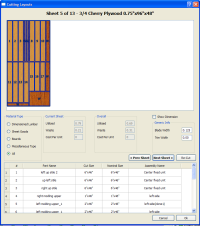
“Just wanted to send you some of the pictures of the built-in that I designed using SketchList 3D.  This was probably the largest most complex project I ever attempted and knew that I needed some drafting help.  I purchased SketchList 3D and began designing.  I don’t think there would have been any way for make all the design changes and construction details without SketchList 3D.  What was really great was the program which optimized and laid out the cutting diagrams for all of the sheets of plywood.  Rather than having to cut the 4 x 8 sheets of plywood in my small shop, I just gave them to my supplier who cut everything to size.  So for a small fee, I was able to save hours of wrangling large sheets of plywood into about 100 different pieces.  Thanks again for a wonderful product.”

What a great concept – asking the lumber yard to cut the sheets.  I am getting too old to ‘wrangle’ 4 x 8 sheets around anymore.

Thanks for the nice feedback Mike!  Question – will the dog let you pass?

If you have a design to share – send in a photo[s] and let me know what you’ve accomplished.

Categories
Blog Uncategorized

Drag and drop in furniture design software.

People e-mail in asking, or more specifically, demanding that SketchList 3-D should have drag and drop abilities in the design mode.  With the exception of the shaped board editor SketchList 3-D does not allow dragging and dropping of assemblies or components.  This is a specific design decision that I made for several reasons.

First of all, I almost always find drag and drop to be cumbersome.  I drag something, and either my screen resolution, my mouse, or my questionable eyesight keeps me from dropping it at the right spot.  There are graphics programs which allow you to set up a grid of points where you can do a “snap-to”.  The thing about using snap-to is that when you want to snap somewhere between two snap-to points — well, you can’t.  So then you either turn snap-to off or re-size snap-to grid.  And on and on and on.   But that’s just my point of view, based on my experience.

More importantly, I think it’s challenging to the point of impossibility to be working on a kitchen project that is 18 feet wide and hope that you can drag and drop something to the nearest 3/16 of an inch.  Never happen, not quickly at least!

If I want to have a cabinet 4 feet 6 3/8 of an inch from the left, the most direct way to do that is simply typing in 4 feet, 6 3/8 of an inch as the left locating dimension!  Every single time, the cabinet goes precisely where I wanted.  The software developers in the graphics design area called this parametric or parameter driven design.

The use of the drag-and-drop technique that people are asking for seems to be to make two objects butt together.  More than one user would like, in addition to drag and drop, the ability for a board to know when it’s butted against another board.  On one level, this has the same problem as the snap to grid approach.  What happens if, for whatever reason, I don’t want to board the butt but overlap.  I know this might not make sense.  But what happens if? Besides, it’s a pretty challenging technical feat for every board to know where every other board is.

In the parameter driven approach if I know a right edge of the board is at 18 7/8″, to butt a board against it I would enter the left value of the second board as 18 7/8″.  The boards meet no question about it.  And as far as speed goes, while never actually testing it, I’d bet a dollar to a doughnut, drag-and-drop is slower.

Well then why do we allow drag-and-drop in the shaped boards editor?  It’s really hard to say.  Maybe to some degree it’s a marketing concession to the drag-and-droppers of the world:)

To an extent, it makes sense in a limited and controlled geometry of a single board when you want to see exactly where the points are going to be.  But points can always still be entered by typing in their  distances from the bottom-left corner of the board.

All of this comes to the larger question of peoples’ perceptions of what design program should be and do.  New users come to SketchList 3-D from some other sort of drawing program — like a paint program on Windows.  From that point of view it sensible to think in terms of depositing rectangles on a flat plane and dragging the rectangles to create size and space, and then grabbing those rectangles in their entirety and dragging them to other places on the to be workspace. That is easy to understand and many, many people use that type of program.

But SketchList 3-D is more than a simple drawing program.  It is a 3-D furniture design software that incorporates the functions and reports needed to help woodworkers in the shop. It’s able to do this because in SketchList 3D the virtual board you create on the screen is much more than a 2D or even a 3D image.  That virtual board is a visual representation of a record in the database that contains information such as grain appearance, grain direction, source material, cost of the material, type of joinery, type of edging…

The point is there’s a lot going on with virtual boards that you don’t get with a drawing program.  It’s hard to compare apples and oranges.  And after all, I don’t like drag-and-drop not because I don’t like it but because I don’t think it’s as effective as it needs to be.


boards as design element

Categories
Blog

Using Furniture Design Software Reports in the Shop

A recent survey shows that woodworkers said the two most valuable uses of furniture design software are creating 3D images and printing shop drawings.  Sure.

The 3D images help close the deal and the optimized layout diagramdrawings help build it – I get it.

But this is a case, in part, where people put forward a current view of needs or wants and do not move ahead to state their problems in a more encompassing way. And I get that as well — a problem needs fixing.  But it’s like stating the problem as cutting a sheet of plywood and finding that a circular saw and straight edge are the solution.  But then again you might think a bit more and find a table saw to be better, or a panel saw, or even a CNC machine.

Take the shop drawings from cabinet design software programs. Sure you need drawings.  But it would be very nice to also have diagrams to show you how to lay out your parts on the materials to reduce waste.  Or reports that allow you to sort by material then into sizes — for example ‘list all parts of 3/4 cherry plywood that are 8 inches wide’.  Why? Maybe you can rip them all with the same set up.  That saves time.

Or create a list of all boards with a tenon on them — again set it up once, cut it in one process, and maybe save a little more time.  And the report should show both the design length and the cut length (taking account of the tenon(s)) to keep you from making the ‘Oh no, it’s too short’ mistake some woodworkers have tell about.  So think ahead when considering furniture or cabinet design software. Pick the one that solves more than one problem.