Categories
Uncategorized Version 5

Designing Drawers: Tips and Techniques

Designing Drawers: Tips and Techniques for Sturdy and Stylish Drawer Construction

Designing drawers – As a woodworker, I have always believed that a well-designed drawer is the hallmark of good craftsmanship. Drawers are an integral part of any furniture piece, and their design can either make or break the functionality and aesthetics of the furniture. In this article, I will share some tips and techniques for designing sturdy and stylish drawers that will stand the test of time.

Introduction

Before we dive into the details of designing drawers, it is essential to understand the importance of drawers in furniture design. Drawers are the primary storage component of any furniture piece, and they need to be functional, sturdy, and aesthetically appealing. A well-designed drawer should be easy to open and close, should have ample storage space, and should complement the overall design of the furniture.

Benefits of Well-Designed Drawers

Well-designed drawers offer several benefits to both the designer and the end-user. For the designer, a well-designed drawer is a testament to their craftsmanship and attention to detail. For the end-user, a well-designed drawer offers ease of use, ample storage, and adds to the overall aesthetics of the furniture piece.

Types of Drawer Construction

There are several types of drawer construction methods, and each has its pros and cons. The most common types of drawer construction methods are dovetail, dado, box, and butt joint. Dovetail joints are the most popular and are known for their durability and strength. Dado joints are another popular option and are known for their simplicity and ease of construction. Box joints are relatively easy to construct and are known for their clean lines and strength. Finally, butt joints are the simplest and are best suited for lightweight drawers.

Factors to Consider When Designing Drawers

When designing drawers, there are several factors to consider, including the size of the drawer, the weight it will be carrying, and the type of furniture it will be a part of. The size of the drawer is crucial as it determines the amount of storage space it will offer. The weight it will be carrying is also essential as it determines the type of joint that will be used. The type of furniture it will be a part of is also crucial as it determines the overall design aesthetic of the drawer.

Common Mistakes to Avoid When Designing Drawers

One of the most common mistakes that designers make when designing drawers is not considering the weight the drawer will be carrying. If the drawer is not designed to handle the weight, it will buckle and eventually break. Another common mistake is not leaving enough space for the drawer to open and close fully. This can lead to the drawer getting stuck, which can be frustrating for the end-user. Finally, not selecting the right type of joint for the drawer can also lead to its failure.

Drawer Hardware Options

Drawer hardware is an essential component of any drawer, and there are several hardware options available. The most popular hardware options are ball-bearing slides, side-mount slides, and under-mount slides. Ball-bearing slides are known for their smooth operation and durability. Side-mount slides are relatively easy to install and are known for their affordability. Under-mount slides are the most aesthetically pleasing and are ideal for furniture pieces where the drawer is visible.

Tips for Designing Sturdy and Stylish Drawers

When designing drawers, there are several tips that can help ensure that they are both sturdy and stylish. One of the most important tips is to select the right type of joint for the drawer. Dovetail joints are the most popular and are known for their strength and durability. Another important tip is to select the right type of hardware for the drawer. Ball-bearing slides are the most popular and offer smooth operation and durability. Finally, selecting the right type of material for the drawer is also crucial. Hardwoods such as oak, maple, and cherry are ideal for drawer construction.  Drawer pulls add functionality and function.

Materials for Drawer Construction

The material used for drawer construction is essential and can significantly impact the durability and aesthetics of the drawer. Hardwoods such as oak, maple, and cherry are ideal for drawer construction as they are durable and aesthetically pleasing. Plywood is another popular option and is known for its strength and affordability. Particleboard is the least preferred option and is best suited for lightweight drawers.

Drawer Design Techniques

Drawer design techniques are an essential component of any furniture piece, and there are several techniques that can be used to enhance the aesthetics of the drawer. One of the most popular techniques is adding a decorative edge to the front of the drawer. This can be achieved by using a router or by using decorative molding. Another popular technique is adding a decorative inlay to the front of the drawer. Inlays can be made from a variety of materials such as wood, metal, and stone.

Conclusion and Final Thoughts

In conclusion, designing drawers is an essential component of furniture design, and it requires attention to detail and a thorough understanding of the various factors that influence their design. By following the tips and techniques outlined in this article, designers can create sturdy and stylish drawers that will stand the test of time. Whether you are an experienced designer or just starting, designing drawers requires patience, skill, and an eye for detail. Remember to select the right hardware, material, and joint for the drawer, and always consider the weight it will be carrying. With these tips in mind, you can create beautiful and functional drawers that will last a lifetime.

If you need assistance with designing drawers or any other furniture piece, please feel free to visit us at sketchlist.com/.  SketchList 3D is the leading woodworking design software and makes designing and making high quality drawers.


Categories
Uncategorized Version 5

Custom Woodworking Thoughts

custom woodworking


The Beauty of Custom Woodworking: How Our Craftsmanship Sets Us Apart

As a woodworker, I am passionate about creating unique and beautiful pieces of furniture that will last a lifetime. In this article, I will share some of my thoughts on the art of woodworking, the benefits of choosing custom over factory-made furniture, and the process of creating custom woodwork.

Introduction

Custom woodworking is the art of creating unique and custom-made wooden furniture, cabinets, and other woodwork items. It involves designing, building, and finishing wooden items that are tailored to a specific client’s needs and preferences. Custom woodworking is an intricate process that requires attention to detail, craftsmanship, and creativity. Woodworking craftsman take pride in creating pieces that not only look beautiful but are also functional and durable.


What is Custom Woodworking?

Custom woodworking is different from factory-made furniture in that it is made by hand and tailored to a specific client’s needs. With custom woodworking, the client has complete control over the design, materials, and finishes used in the piece. This means that the result is a unique and one-of-a-kind piece that cannot be replicated. Custom woodworking involves a high level of craftsmanship and attention to detail, so it is often more expensive than factory-made furniture. But those are two different things for sure.

Benefits

There are several benefits to choosing custom woodworking over factory-made furniture. First and foremost, custom woodworking allows you to create a piece that is tailored to your specific needs and preferences. This means you can choose the piece’s size, shape, and design fit perfectly in your space. Custom woodworking also allows you to choose the materials used in the piece. This means that you can choose high-quality materials that will last a lifetime.

Another benefit of custom woodworking is that it allows you to support local artisans and craftsmen. By choosing custom woodworking, you support small businesses and individuals passionate about their craft. More expensive than factory-made furniture, the higher cost is justified by the quality and uniqueness of the piece.


Difference between Custom and Factory-made Furniture

The main difference between custom woodworking and factory-made furniture is the level of customization and craftsmanship involved. Factory-made furniture is mass-produced using machines, and the designs are often limited to a few options. On the other hand, woodworking involves designing and building a piece from scratch. This means that the client has complete control over the design, materials, and finishes used in the piece.

Custom woodworking is also typically more durable and long-lasting than factory-made furniture. This is because custom woodwork is made by hand and with high-quality materials. Custom woodwork is also unique and cannot be replicated, whereas factory-made furniture is often mass-produced and needs more individuality.


The Art of Woodworking

Custom woodworking is an art form that requires skill, creativity, and attention to detail. As a custom woodworking craftsman, I take pride in creating pieces that are not only beautiful but also functional and durable. Custom woodworking involves several different steps, including design, material selection, cutting and shaping, joining, finishing, and assembly.

The design process involves working with the client to create a piece that meets their specific needs and preferences. This involves considering the piece’s size, shape, and style, as well as the materials and finishes used. Once the design is finalized, the material selection process begins. This involves choosing high-quality materials that will look beautiful and last a lifetime.

The cutting and shaping process involves using various tools to cut and shape the wood into the desired shape. This requires skill and precision, as even the slightest mistake can ruin the piece. Joining involves connecting the different pieces of wood using various methods, such as dovetail joints, mortise and tenon joints, and biscuits.

The finishing process involves applying a finish to the wood to protect it from damage and enhance its natural beauty. This can include staining, painting, or applying a clear coat. Finally, the assembly process involves putting all the pieces of the woodwork together to create the final product.


The Process of Creating Woodwork

The process of creating custom woodwork involves several steps, each of which requires skill, creativity, and attention to detail. The first step in the process is to meet with the client to discuss their needs and preferences. This involves understanding the size, shape, and style of the piece, as well as the materials and finishes used.

Once the design is finalized, the materials are selected and the cutting and shaping process begins. This involves using a variety of tools, such as saws, chisels, and routers, to cut and shape the wood into the desired shape. The joining process involves connecting the different pieces of wood together using a variety of methods, such as dovetail joints, mortise and tenon joints, and biscuits.

The finishing process involves applying a finish to the wood to protect it from damage and enhance its natural beauty. This can include staining, painting, or applying a clear coat. Finally, the assembly process involves putting all the pieces of woodwork together to create the final product.

Conclusion

Woodworking is an art form that requires skill, creativity, and attention to detail. By choosing an effective 3d woodworking design software, you can create a unique and one-of-a-kind piece that perfectly suits your needs and preferences. It involves a high level of craftsmanship and attention to detail, which results in a more expensive product than factory-made furniture. However, the higher cost is justified by the quality and uniqueness of the piece. If you’re looking for a beautiful, durable piece of furniture that will last a lifetime, consider choosing custom work.


Categories
Uncategorized Version 5

Woodworking Joinery Holds It Together.

Woodworking joinery is an essential part of any carpentry project. These joints join two pieces of wood securely, enabling you to build a strong and durable structure. If you’re new to woodworking, and understanding the basics of woodworking explore joints as a place to start. In this blog, we’ll be exploring the different types of basic woodworking joints and their advantages, helping you to get to grips with the basics of woodworking joinery.

Introduction to Basic Woodworking Joinery

Woodworking joints are the connections between two pieces of wood that are used to create a strong and durable structure. They can be used to build furniture, cabinets, frames and more. There are different types of woodworking joints, each with its own advantages and disadvantages. Knowing which joint to use for a particular project is essential for creating a strong and aesthetically pleasing structure.

Some Woodworking Joints

Woodworking joinery is a specialized type of construction that uses different types of woodworking joints to connect pieces of wood. These types of joints include mortises and tenons, dovetails, and box joints. Each type of joinery has its own strengths and weaknesses, which is why a woodworker should choose the type of joinery that’s best suited for the task at hand. For example, a dovetailed joint is strong and stable, but it can be difficult to make. On the other hand, a mortise and tenon joint is easy to make but less strong. Box joints are a compromise – they’re strong and easy to make, but they can be less stable than other types of joints.
When choosing a woodworking joinery joint, a woodworker should always consider the following factors: the size and shape of the pieces being joined, the type of wood being used, the intended use of the joint, and the amount of stress the joint will experience. Once these factors have been considered, the woodworker can choose the appropriate joinery joint for the task at hand.

Advantages of Basic Woodworking Joints

There are several advantages to using basic woodworking joints. Firstly, they are relatively straightforward to assemble. This makes them ideal for beginners, who may not have the skills or tools necessary to assemble more complex joints. Secondly, they are relatively inexpensive. The materials required for these joints are usually readily available, making them a cost-effective option. Finally, these joints are strong and durable. When assembled correctly, they can be used to create a strong and sturdy structure that will last for years.

Choosing the Right Joint for Your Project

When choosing a woodworking joint for your project, it is important to consider the strength and durability of the joint as well as the aesthetics. For example, a dovetail joint is much stronger than a butt joint, but it may not be the most visually appealing option. It is also important to consider the materials you are using. Some joints, such as mortise and tenon joints, require specific tools and materials that may not be suitable for your project.

Design Considerations for Basic Woodworking Joinery

When designing a structure with basic woodworking joints, it is important to consider the size and shape of the pieces you are joining. For example, dovetail joints require pieces of wood to be cut into specific shapes in order to create the interlocking shape. It is also important to consider the type of wood you are using. Some woods, such as oak, are very strong and durable and are better suited for certain types of joints.

Conclusion

Basic woodworking joinery is an essential part of any carpentry project. Used to join two pieces of wood securely, it enables you to build a structure that is strong and durable. In this blog, we’ve explored the different types of basic woodworking joints and their advantages, helping you to get to grips with the basics of woodworking joinery. When choosing a woodworking joint for your project, it is important to consider the strength, durability, and aesthetics of the joint, as well as the materials you are using. With the right knowledge and understanding, you can build a beautiful and sturdy structure with basic woodworking joints.

To get an idea of how SketchList handles designing joinery, see this post.

All types of tools are made to somewhat automate the making of joints.  Get an idea at this Rockler site.

Categories
Basics and How to Uncategorized

Cut List Optimizer for Woodworkers

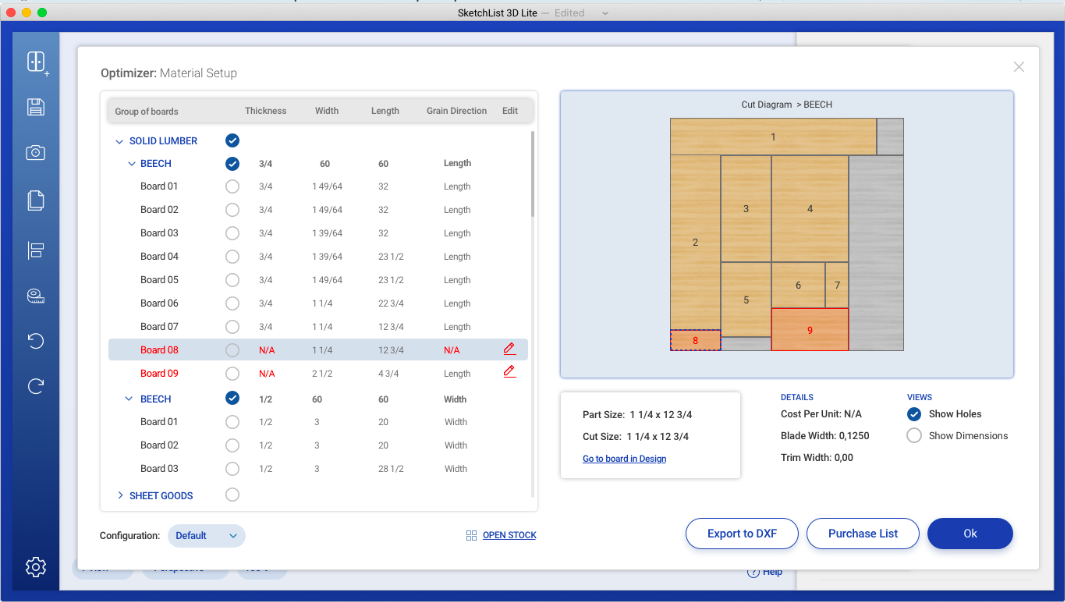
Cut List Optimizer screen shot in SketchList 3D


Are you a woodworker? Are you tired of spending hours manually creating your cut list? There are tools that can help you. The material optimizer is one and a cut list [or part list] is another. Woodworking design software like SketchList 3D is unique because it integrates both an optimizer and a cut list report into the process of designing your work—one and the same.

What is a Cut List Optimizer?

A cut list optimizer is a tool that helps woodworkers create the most efficient cut list for their projects. It uses algorithms to analyze and optimize the dimensions of all the pieces you need to cut, making sure that you get the most out of every piece of wood. It simplifies the process of creating a cut list, allowing you to spend more time actually doing the woodworking instead of calculating and planning.

Benefits of Using a Cut List Optimizer

Using a cut list optimizer can save you a lot of time, energy, and materials. It can help you get the most out of every piece of wood, ensuring that you don’t waste any resources. It can also improve the accuracy of your cut lists, allowing you to make precise cuts and achieve better results. Finally, it can help you to plan your projects more efficiently, allowing you to maximize efficiency and minimize waste.

One of the biggest benefits of using woodworking design software is that it often combines cut list creation with the design process, so your measurements, parts, and materials stay aligned automatically as you build your project digitally. Finally, it can help you plan your projects more efficiently, allowing you to maximize efficiency and minimize waste.

Features of a Cut List Optimizer

A good cut list optimizer should offer a wide range of features.

  1. It should be able to analyze and optimize the dimensions of any piece you need to cut, as well as identify common patterns and repeatable elements.
  2. It should also be able to identify the most efficient way to cut your pieces, taking into account any restrictions or limitations you have.
  3. Finally, it should offer a simple and intuitive interface, allowing you to quickly and easily create and edit your cut list.

Those basics will get you by.  But other features such as setting the blade width [kerf size], allowing filtering of the report by material type and assembly, and producing a purchase list of materials needed for a given job are very nice to have.

The Process of Creating a Cut List

Creating a cut list is a complex process. It involves measuring and calculating the dimensions of all the pieces you need to cut, as well as identifying common patterns and repeatable elements. It can be difficult to do this manually, as it takes a lot of time and energy.

With SketchList the complexity goes away.  Each board you add to your design is assigned to a material.  The software checks to make sure the new board actually fits onto the material.  As you move along with your design adding new boards, those boards are separated by material types, species, and sizes and mapped onto the material.  For example all the parts on 1/4 inch plywood map again the material you specify for them.   The optimization process is the design process.

How a Cut List Optimizer Works

A cut list optimizer works by analyzing and optimizing the dimensions of all the pieces you need to cut. It takes into account any restrictions or limitations you may have, as well as any common patterns or repeatable elements. It then identifies the most efficient way to cut the pieces, making sure that you get the most out of every piece of wood.

How to Use a Cut List Optimizer

Using a cut list optimizer is easy. All you need to do is input the dimensions of the pieces you need to cut, as well as any restrictions or limitations you may have. The optimizer will then analyze and optimize the dimensions, identifying the most efficient way to cut the pieces. You can then use the optimized cut list to make precise and accurate cuts.

Again with SketchList you are inputting the parts sizes and you virtually cut and place the board into your work.  So no extra steps are needed.

Advantages of a Cut List Optimizer

Using a cut list optimizer can offer a number of advantages. It can save you a lot of time and energy, as it automates the process of creating a cut list. It can also improve the accuracy of your cut list, allowing you to make precise and consistent cuts. Finally, it can help you to plan your projects more efficiently, allowing you to maximize efficiency and minimize waste.

Popular Cut List Optimizers

There are a number of popular cut list optimizers available on the market. Some of the most popular include CutList Plus.  It offers a range of features, allowing you to easily and quickly create and edit your cut list.  However it does not include a design function so you must first draw out your design, make a parts list with sizes, and enter them into the spreadsheet for importing.

Conclusion

If you’re a woodworker, then a cut list optimizer is a must-have tool. It can save you a lot of time and energy, as well as improve the accuracy of your cut list. It can also help you to woodowrking workshop plan your projects more efficiently, allowing you to maximize efficiency and minimize waste. So, what are you waiting for? Try a cut list optimizer today and unlock new levels of efficiency in your woodworking projects!

Categories
Uncategorized

Drawer design software in woodworking

drawer design

Drawer design can be challenging, but with the right software, you can unlock the possibilities of creating unique and functional drawers. In this blog post, we’ll explore the advantages of using SketchList 3D.   So, let’s get started!

Introduction Software for Designing Drawers

SketchList 3D is a powerful tool that can help you create custom drawers with ease. It’s designed to make the process faster and easier, allowing you to focus on the details. With the right software, you can create the perfect drawer for any application.

Advantages of Using Drawer Design Software

Using drawer design software has many advantages. First, it saves time. With the right software, you can quickly design the perfect drawer in a fraction of the time it would take to do it manually. Additionally, it simplifies the process. With the right software, you can easily add and adjust measurements, choose materials, and customize the design to create the perfect drawer. Finally, it’s cost-effective. The right software can help you save money by allowing you to design the perfect drawer without having to hire a professional.

Different Types of Drawer Design Software

There are different types of drawer design software on the market. Some are designed to be used by professionals, while others are designed for the average user. When choosing a software, it’s important to consider your needs and budget.

For professionals, there are software packages that offer advanced features, such as 3D modeling, CAD integration, and more. These software packages typically cost more, but they offer the most features.

For the average user, there are software packages that are more user-friendly and offer basic features, such as the ability to add and adjust measurements, choose materials, and customize the design. These software packages typically cost less, but they offer the basic features needed to design a drawer.

How SketchList 3D Can Help You Create Custom Drawers

SketchList 3D can help you create custom drawers with ease. With the right software, you can quickly design the perfect drawer for any application. You can add and adjust measurements, choose materials, and customize the design to create the perfect drawer. Additionally, the right software can help you save time and money by allowing you to design the perfect drawer without having to hire a professional.

Strategies for Selecting the Right Package for Your Needs

When selecting the right software for your needs, it’s important to consider your budget and the features you need. It’s also important to consider the user-friendliness of the software. If you’re a professional, you may want to invest in a software package that offers advanced features. If you’re an average user, you may want to invest in a software package that is more user-friendly and offers the basic features you need.

Common Features of Drawer Design Software

Most drawer design software packages offer a variety of features, such as the ability to add and adjust measurements, choose materials, and customize the design. Additionally, some software packages offer advanced features, such as 3D modeling and CAD integration.

Tips for Use

When using the software, it’s important to take your time and plan out your design. Additionally, it’s important to pay attention to details, such as measurements and materials. Finally, it’s important to save your work frequently to avoid losing any progress.

You might want to see this list of steps on making a drawer.

Resources for Learning to Use SketchList 3D

If you’re interested in learning to use SketchList 3D, there are several resources available.  We offer video guides to help you get started. Additionally, each week there is an online meeting dedicated to helping users learn how to use SketchList 3D.  Sign up here.

Conclusion

SketchList 3D is a powerful tool that can help you create custom drawers with ease. It’s designed to make the process of designing drawers faster and easier, allowing you to focus on the details. With the right software, you can create the perfect drawer for any application. When selecting the right software for your needs, it’s important to consider your budget and the features you need. Additionally, it’s important to take your time and plan out your design and pay attention to details. With the right software and a little practice, you can unlock the possibilities of creating unique and functional drawers.

Categories
Basics and How to Uncategorized

Storage cabinet – considerations before you design

Maximizing Your Space with the Right Storage Cabinet

‍When it comes to organizing your home or office, having the right design is key.   This essential piece of furniture helps keep your space tidy and clutter-free.  This article covers a general approach to cabinets, doors and drawers , office cabinets, kitchen cabinets  and the bathroom storage cabinet.

In this article, we’ll take a look at the benefits of having a cabinet, the different types of cabinets, and tips for designing and organizing one. So, let us get started!

Cabinet: a type of furniture that has multiple compartments for organizing and storing items. It can come in many different shapes, sizes, and materials. Most are made from wood, metal, or plastic. Some cabinets also have doors or drawers that can be locked to keep your items safe and secure.

Use storage cabinets in many different areas of your home or office. They are ideal for organizing your tools, documents, books, and other items.

Having cabinets can make your life a lot easier. Here are some of the benefits:

    • They help to organize your items and keep your space tidy.
    • They increase the amount of usable storage space in your home or office.
    • They help to keep your items safe and secure.
    • They store items that are not frequently used, such as old books or clothes.

Benefits of having cabinets in the office

Having a storage cabinet in the office can be beneficial in many ways. It can help to organize your documents and keep them safe. It can also help to keep your office tidy and clutter-free. Having them in the office can also help to improve productivity since it can help to keep your workspace organized.

Benefits of having cabinets in the garage

Having cabinets in the garage can be beneficial in many ways. It can help to organize your tools, such as hammers, wrenches, and screwdrivers. It can also be used to store gardening tools, sports equipment, and other items that are used on a regular basis. Having a cabinet in the garage can also help to keep your garage organized and clutter-free.

Popular cabinet styles

There are many different types of cabinets available. One way to look at them includes office  cabinets, kitchen storage cabinets and a bathroom storage cabinet.

Beyond that here are some of the most popular cabinet styles:

  • Wall-mounted:  These are ideal for saving space in your home or office. They can store items used on a regular basis, such as tools or documents.
  • Freestanding:  These provide flexibility, especially if mounted on wheels, allowing them to move anywhere.
  • Cabinets with doors: Ideal for keeping your items safe and secure. They can also store items not frequently used.
  • Garage storage systems: Proper design makes them ideal for organizing your tools and other items used on a regular basis.

Different materials used for storage cabinets

Storage cabinets can be made from many different materials. Here are some of the most common materials used for storage cabinets:

  • Wood: Wood is a popular material for cabinets because it is strong and durable. Stained or painted cabinets match your home or office decor.  Many find this more aesthetically pleasing than other types of storage cabinets.
  • Metal: Metal is a popular material for cabinets because it is strong and durable.
  • Plastic: Plastic is a popular material for cabinets because it is lightweight and affordable. It is also easy to clean and maintain.

Tips for designing the right cabinet

When it comes to choosing the right storage cabinet for your home or office, there are a few things to consider. Here are some tips for choosing the right storage cabinet:

  • Determine what type of items you need to store: Before you buy a storage cabinet, you should determine what type of items you need to store. This will help you choose the right size and type of storage cabinet.
  • Measure the available space: You should measure the available space in your home or office before you buy a storage cabinet. This will help you choose the right size and type of storage cabinet.
  • Consider the material: You should also consider the material of the storage cabinet you are buying. Different materials offer different levels of durability, so it’s important to choose the right material for your needs.
  • Consider the style: You should also consider the style of the storage cabinet you are buying. Different styles offer different levels of aesthetics, so it’s important to choose the right style for your needs.

Tips for organizing your storage cabinet

Once you’ve chosen the right cabinet for your needs, it’s time to organize it. Here are some tips for organizing your cabinet:

  • Sort your items: Before you start organizing your storage cabinet, you should sort your items.
  • Label your items: Once you’ve sorted your items, you should label them. This will help you find items quickly and easily.
  • Store items in the right compartments: Once you’ve labeled your items, you should store them in the right compartments. This will help you keep your storage cabinet organized and tidy.
  • Use dividers: If you need to store items of different sizes, you should use dividers. This will help you keep your items organized and easy to find.

Conclusion

Having the right storage cabinet is key when it comes to organizing your home or office. It can help to keep your items safe and secure, and it can also help to maximize the amount of usable storage space in your home or office. There are many different types of design possibilities so it’s important to create the right design for your needs. Once you’ve chosen the right design, it’s time to organize it. By following the tips in this article, you can maximize your space with the right cabinet.  More information about office cabinets, kitchen cabinets and bathroom cabinet exists here. 

Categories
Uncategorized

Woodworking CAD – Look Carefully

Woodworking CAD – what do you know?

“You cad you.”  What is a Cad anyway?  One definition is “a man who behaves dishonorably, especially toward a woman.”   Hmmm.  No female cads?   The synonyms for cad include scoundrel, rascal, good-for-nothing, cheat, fraudster, and trickster, among others.  Sorry, wrong CAD.  CAD companies are out to sell woodworkers CAD software.  Of course, software CAD means computer-aided (or assisted) design. But still, it too can disappoint the user.  What is a better option is woodworking-specific cad software.

screen image showing Fusion 360


You should carefully consider using CAD programs marketed as a  woodworking design tool.

The CAD  program uses concepts and approaches conceived in the metalworking industry several decades ago. This is not to say that CAD programs are not very useful for design. Instead, they are cumbersome and do not facilitate the woodworking design task.

To see why,  consider the terminology, toolset, and approaches of traditional CAD. The first is to notice that the CAD program to work in three-dimensional space uses the timeless mathematical approach of X, Y, and Z.  Who wants timeless.  We want to save time.

It’s much easier to use the words “height,” “width,” and “depth” and call them left-right, front-back, bottom-top.

When using CAD, or perhaps watching a video explaining how to use CAD, you’ll notice that terms like geometry, vector surfaces, and vertices are used to describe the design elements. For woodworkers, it’s much easier to take that basic building block of woodworking design and call it what it is.

That is, it’s a board.

Generally, a board has two surfaces and four sides. And using the cutting tool, you can create as many sides as are necessary for your design.

Then there is the concept of layers by which you can slice up the design into collections of related objects. You can choose where the objects will be placed by displaying or hiding layers. You might think of a cabinet carcass as one layer and the face frame as another. In fact, we don’t hold that distinction in the physical woodworking world.

Another thing you’ll notice when you glance at a CAD software user interface is that there are many small icons, each linking to a function. One might guess that most icons rarely get used, some of which are combined with other icons. This is very difficult to keep straight in your mind

One particularly egregious procedure in CAD software marketed to woodworkers is that of extruding. If you want to place a hole in an object or add a tenon on a board edge, you draw a rectangle locating it as needed. Then you use the tools to push or pull that rectangle into a tenon or hole.

Generally, people trying to learn to use CAD software find that they can conquer the task in two dimensions but have difficulty moving into that third dimension.

There is one significant setback for those who persist in pursuing the marketeer’s packaging of CAD for woodworking.

While CAD programs generally do an excellent job creating shop drawings with dimensions. They do not provide critical woodworking reports. For example, if you’re using CAD for woodworking after finishing the design, you must go through your drawings and pull off your cut list or your part list. Similarly, if you choose to create an optimized layout for parts cut from sheet goods, you must do that manually. Of course, there are packages you can buy to help you with that. Still, the question is, why do you want to take on additional work of learning yet another software package to accomplish what should be in the one you’ve already purchased.

Did I mention changes to the design? It can be challenging to do simple modifications because designs are put together using lines, squares, and rectangles as pixels on the screen. For example, making a cabinet taller or wider. There’s a video about fusion 360 in which the teacher shows how to do just that. But to accomplish widening the cabinet, he had to first select all of the vertical members of the design and turn them, so they were horizontal. And, of course, after the change was made, they had to be moved back to the vertical position.

The speed with which someone learns a new software package depends on many factors.

In an article in the Fine Woodworking magazine (SEPTEMBER/OCTOBER 2004), the author Gregory Paglini estimated it might take 10 to 30 hours to learn the basics, depending on the package.  Now he’s an expert and very experienced in the ideas and general techniques and approaches of using CAD. He addressed this in the article.

“At first I was concerned that my knowledge of drafting and CAD would affect my judgment. I trained on AutoCAD, the industry, and worried that my familiarity with the program would make an objective review difficult. But to my surprise, none of the programs shared AutoCAD’s concepts and commands, including the two programs that were made by the same software manufacturer. As a result, I faced each program with the same learning curve”

There is a whole world of experience and understanding that goes beyond concepts and commands that apply to all the software.  He was to a large extent comparing oranges to oranges.

In various blog posts, people write that it takes six months to become proficient at using CAD.

I attended a woodworking show where a CAD software company used for woodworking was putting out a presentation. They had beautiful renditions of a library office in a New York City apartment. The woodwork covered the walls with shelves, the windows with beautiful casements, and even the ceiling. During the break, I asked the designer how long it took him to learn to use the software to that extent. he said he thought it took six months 2 become proficient but over a year to become skilled. This is a person who’s five-day a week job was creating designs using CAD. Now for the revenue made on that room, the expense and time were probably justified. But for most woodworkers running their own business, that time frame is entirely unrealistic.

So looking at computers for woodworking software makes little sense, and so many woodworkers are still stuck in the pen and pencil approach to design. Those have been around, well, as long as pencil and paper.   The irony is that they find that old pencil and paper faster and more productive. Although changes are equally as challenging to make.  For more on this and SketchUp see this post.

But it need not be that way.

SketchList 3D  — the woodworking-specific woodworking design software that mimics the processes of the steps and thoughts used by woodworkers to build their projects using only three tools. The designer can create virtually any type of design using just three tools. These are a spreadsheet, a calculator, and the mouse moving a 3-dimensional image on the screen. These are all built into sketch list 3D. You create your design like you’re working in your shop: cutting and assembling virtual boards in real-time.

With this approach, there’s no cost material, no need for machinery or floor space, or the possibility of making mistakes that are difficult to undo.

These virtual boards can be made of any material.  Design and construction details are added to the boards with just a few mouse clicks. They include contours, joinery holes, and shapes. All reports are automatic and integrated with the design process. Any changes to the design automatically update dimension shop drawings, cut lists, and optimized material layouts.  A bonus?  The availability of photo-quality 3D images.

With a few easy-to-understand tools, you accomplish your first design quickly.


Categories
Uncategorized Version 5

SketchUp was not designed for woodworking.

SketchUp - wrong tool

SketchUp.  Sometimes you know the wrong tool.  Sometimes you don’t.

Several software reviews have selected SketchUp as the best software for woodworking design.   Whether SketchUp is or is not the best tool for woodworking depends, to some extent, on a reviewer’s outlook and experiences.    They write many reviews and may not have the time to do a deep dive into the issues.  My deep dive into the best software for woodworking design finds that SketchUp doesn’t qualify.

In a survey asking people who tried or tested if SketchUp if is well suited for woodworking, only 40% responded yes. Of those who actually use SketchUp, 60% said it is designed for woodworking.  So those with more experience rate it as slightly higher for woodworking.  Still, to be rated as the best we would expect a higher score.  More on that later as we see what the original developers had in mind.

As I said before, SketchUp is not the best design software for woodworkers.

Let’s consider three things.

1: I might be wrong.  After all, it works for 60% of users in our survey.

  • It depends on how it is used.  Some users only do quick sketching needs for large concept designs and do not concern themselves with woodworking details.  This is key – how do they use SketchUp?

From Wood Talk [https://woodtalkshow.com/episodes/wt483-drunk-on-design/]  experts Marc Spagnuolo, Shannon Rogers, and Matt Cremona.  They are discussing the design and creative process they follow.

“it’s a little bit of trying to find inspiration, put stuff down on paper, and then there is a point where I do want to go digital; it’s when I need to work out. You know proportions…, I don’t necessarily need to completely 100% build this thing out in SketchUp, and I’ll tell you most of the time, my drawings are maybe 50% of the way there.

So that’s pretty far along actually do pretty well 50%…

That’s where mine is kind of more than like a 10% range. Yeah, there’s like no joinery; nothing’s got actual angles on anything. It’s just like yeah, here are some boxes looking thing, so I can get some key dimensions in there, you know, use your imagination, and be fine.

But yeah, I don’t often like I get that question a lot, do you have 100% finished SketchUp drawing, and no, I never do.

What are the chances of that 100% finished SketchUp drawing actually being true to the project by the time you’re done, like  zero?”

This gives a glimpse of who three very experienced woodworkers actually use SketchUp in their design process.

They are not seeking end-to-end design and production – but a starting point for exploration.

  • If used by users with experience in other CAD systems, they may have the mindset and necessary experience for using SketchUp.  And by many accounts, SketchUp is an easier-to-use CAD product.  So, it makes sense they find it easy to learn and use.
  • Some people spend much time and effort invested in learning the software.  They join groups, pay teachers/consultants, and (pre-Covid) attended all-day or weekend classes.

2:  There are a number of woodworking groups, bloggers, articles, reviews, consultants, and authors that disagree with me.   But consider the following.

  • Consider vested interests.  There are scads of consultants, authors, and blog post writers.  What if a software product needed no consultants or teachers?   How would they make money?  I cannot blame them for going after the largest market for their services.  But still, they are teaching the use of the wrong tool for the job. I’ll get into this more in a bit.
  • Reviews are seldom in-depth examinations of usability or features.  It takes a lot of time and effort to do a meaningful review.  If you read many reviews on SketchUp, you might notice that a review tends to get copied and republished.  In many cases, web pages are simply publishing to attract visitors.
  • SketchUp users have a certain crowd/cult mentality.  Supporters of SketchUp are firm in their opinion – and there are entitled to those.  But the strength of one’s conviction is not enough to bring you to an accurate conclusion.

3: And finally, it was, indeed, not designed for woodworkers.

One of the original developers of SketchUp, John Bacus, wrote:

“Most people find software tools frustrating to use (‘un-intuitive) when fail to match [user] expectations set by some prior experience.  In SketchUp’s case, we relied on ‘drawing’ for our scaffolding.

SketchUp was a quick hit with Architects because they are all taught how to draw- and (especially) how to ‘think with drawing.’ We matched a prior experience for them, so the transition into 3D modeling was easier.”

: Bacus https://www.quora.com/profile/John-Bacus

Jeffrey-McGrew – a SketchUp expert – wrote the following.

“Sketchup is one of a very small number of 3D apps that was made to be easy for everyone.”

https://www.quora.com/profile/Jeffrey-McGrew

And Michael Freiert,  a Project Captain at Pope Architects, adds:

“SketchUp was designed as a sketching tool. It is for quick and rough iteration of a design to get it to a useful place to fully develop. It is great for that because it is so simple to use. BUT that ease of use for sketching … people want to continue to use it for design development and production work, which it is poorly suited for.”

  • SketchUp is not intuitive for woodworkers.

For many, intuitive usually means how easy it is to use the user interface.  And what makes a good user interface is software that functions in ways that fit how the user thinks and wants to use it.

Again, from John Bacus,: Bacus https://www.quora.com/profile/John-Bacus, one of the first SketchUp developers:

“The key issue for me is ‘intuitiveness.’ There is nothing inherently ‘intuitive’ about any computer software, though software designers like me often talk freely about how intuitive our stuff is. Most people find software tools frustrating to use (‘un-intuitive) when they fail to match expectations set by some prior experience.”

The key phrase is “set by some prior experience of the user.”

You see, the SketchUp user experience framework is drawing, not woodworking.

If the framework was woodworking, it would support functions like ‘add a dado.   It doesn’t.  In SketchUp, placing a dado on a board edge requires the user to draw a rectangle and use the push-pull tool to pull it out to the desired size.  In the woodworking world, users don’t pull dados out of wood.

Rob Cameron’s well-done YouTube video “SketchUp for Woodworkers: Molding Revisited” serves as a good example.  In it, he places a molding board on the top of a bookcase.  If you watch it see if you can identify any steps that fit into your – as Bacus calls it – ‘prior experience’ as a woodworker.

It would be much easier if the software allows you to select an edge for the miter, click the miter tool button, and add the number of degrees [or accept the default].

And that gets us into the structure of the design – how it is used and managed.

SketchUp project structure is apart from the woodwork process.  In woodworking, you build a project – say a cabinet.  You add doors, drawers, panels, and boards.  You put some details on the boards – like joinery.  There is a definite and pretty well standard structure  – cabinets, doors, drawers, and boards.  SketchUp approaches managing the components of the project much differently.

This description of managing structure in SketchUp is from the Trimble help page.

(https://help.sketchup.com/en/working-components-sketchup#groups_vs_layers)

“Groups and Components vs. Layers

The process of modeling complex items requires internal order or structure to the 3D file, keeping separate things separate and similar things together. In SketchUp, this order can be attained using Groups or Components.

Layering in SketchUp is for display only. Think of them as light switches that illuminate something or turn it off. Layers in SketchUp are not for individual edges and faces. This is because of the shared nature of faces and edges. All native geometry in SketchUp (edges and faces) belongs on Layer0.

After you have made something into a Group or Component, then you put it on a Layer.

The organization of components in a SketchUp model greatly affects the speed at which your design and modeling work can progress.

By definition, a Group is a single instance of a collection of geometry.

A Component is a named collection of geometry that can exist at multiple locations within the model. Each instance is a repetition of all others.”

Wow!  Teach that in shop class, anyone?  Cabinet – door, drawer, boards, or native geometry [edges and faces], groups, components, and layers.  Which seems more woodworker-friendly?

The SketchUp interface has become too complex.

Freiert implies that because SketchUp provides an easy solution for some design projects, people apply it to work for “which it is poorly suited.” And he makes another great point – it suffers from “scope creep,” which is the continued addition of features are tools.

The lack of woodworking scaffolding, or design focus, necessitates many add-on functions (and more icons) to achieve the desired result.  This, in turn, adds complexity.  I once attended a sales presentation about an expensive cabinet and room design product.  On the screen, there must have been 200 icons.  Someone asked if the software would center a cabinet between two pipes.  Of course, it could, said the presenter, but he needed to go three levels deep in a cluster of icons to find that function.  This is an example of scope creep.

  • And we must recognize that user frustration with any software can come from the user’s lack of computer experience.   It is hard to use a sophisticated package when the user finds opening or saving a file a challenge.
  • Impatience, people are not willing to invest time to learn.

It amazes me how many new users refuse to view even the shortest training videos to learn how to use the product.  I think that comes from an expectation the software will mimic that user’s way of thinking.  The better the software fits your expectation – based upon experience – the less time it takes to learn. But there are gaps between your expectations and the software’s abilities, and the same training or learning is needed.

And sometimes, the user expectations are just too high.   Maybe the marketing hype is responsible for part of this.

There is a relationship between every tool and its intended purpose.  Just match the tool with your purpose of using it.

Finally, in terms of an end-to-end tool well suited for woodworking, consider reports.

A woodworking design software product should provide integrated reports such as cut lists, shop drawings, material layouts, or purchase lists.  SketchUp free or not — requires you to find, perhaps buy, and install add-ons or extensions to meet these needs.  And it seems from a brief look, some of these depend upon Excel for reporting.   How can software designed for woodworking be the best if it does not provide these essential reports?

SketchUp customers like it as a CAD product. But both by function and design, it is not the best design software for woodworkers looking for an end-to-end solution.  Moreover, it was designed, according to its original developers, as a better drawing tool.

Clearly, the marketing people have packaged it for woodworkers.

And media widely support that packaging.  Accordingly, it has taken off in that market.  But in terms of function and convenience, it cannot really hold up to the other software packages specifically designed for woodworkers.

The problem is that many woodworkers believe the marketing, then try the software and finds it does not suit their needs.  These people conclude not only that SketchUp doesn’t work for them, but that they just don’t understand how to use design software.  Or maybe there is no good design software for them.  Then they stop pursuing the design tool that would really benefit and expand their woodworking experience.

Of course, this causes problems because software design programs, much better suited to the needs of the woodworking community, do exist.


Categories
Uncategorized Version 5 - Wood design software

Woodwork Design Software Learning Experience – Free

Woodwork design software learning in a group setting.

If you are a woodworker looking to improve your designs and still use pencil and paper to create them, you really want to begin using furniture design software for your designs.  You will design better and do it more quickly.  The ability to see your ideas in three dimensions will change your woodworking experience.

Sample screen shot from SL V5 meeting basics part 1
Sample screenshot

And of course, in order to use woodwork design software you need to learn to use it first.  And that is not easy.  I was in this position with my woodworking.  But while I tried three software products [AutoCad, TurboCad, and SketchUp], I did not achieve any real success.

So I developed SketchList 3D furniture design software thirteen years ago.  My concept was to make it possible for woodworkers, who are novice computer users, to create projects by creating, sizing, and positioning boards.  Beyond that, furniture-making processes like joinery, shaping, and edging were all included as simple combinations of mouse clicks.  Wait for it – one more – the shop drawings, cut lists, and sheet good layouts were automatically linked to the design.

That took some doing but worked out well.

The real challenge was to work with woodworkers to help them adapt the software to their designs.

While we work diligently to make the software easier to understand and use, and provide tons of documentation and videos, something was missing.

Our users called, texted, and emailed us with questions.  Some paid for one on one training and consulting.  And that was OK.

At the beginning of 2020, I started doing free weekly meetings with SketchList 3D users and people interested in learning about design software.  So pretty much every week since, we have been meeting via Zoom to learn about SketchList 3D, review users’ designs, have people share ideas, tips, and advice.

I am thankful for the ability to do these meetings.  Not only does it give me an excellent channel to user ideas and experiences, but through it, I saw the value of community and relationships with my users.

Earlier this week, we had a meeting that covered the basics of SketchList 3D woodwork design software interactively.   Several people asked questions and made observations.   It seems that everyone was pleased.


There is a YouTube video of the first section of the class.  It covers using furniture design software for creating your project and structuring the various assemblies and subassemblies.  The video runs for 16 minutes.  Over the next week or so, I will post the other four sections.

To read what users are saying click this.