
Categories
Demonstration

Enabling Cutting Dado on Surfaces

SketchList 3D is a powerful cabinet design software that allows users to create realistic 3D models of their woodworking projects. However, some users expressed disappointment that the software did not include the ability to cut dados on board surfaces. We listened to this feedback and added this functionality to SketchList 3D.


Why Dado Cutting Was Not Previously Included

One reason dado cutting was not previously included in SketchList 3D is that we had thought joinery only affects board edges and not surfaces. However, we realized that dado cutting is an important joinery type that affects board surfaces. Additionally, we already had most of what we needed to create dados; we just needed to allow the hole to continue off the edges of the board.


A man wearing blue jeans and a black sweater is using a tool to drill a hole in light brown piece of wood.


How to Cut Dados in SketchList 3D

To cut a dado in SketchList 3D, select the surface of a board and click on “non-round holes.” Locate the dado from the bottom-left (like all else in SketchList 3D), enter the cut’s width, height, and depth, and you’re all set. You can also switch the values to cut the dado in the vertical direction. Make sure to name your dado and provide notes if you like.


 A woman is standing in a woodworking shop using tools to measure and cut wood, while wearing a face mask, and a leather apron.


Using Dados and Woodworking Joinery Tools in Furniture Design

Dado cutting is an essential technique in furniture design and cabinet making. Adding this capability to SketchList 3D allows users to create more detailed and precise designs. With photo-realistic 3D images, you can show clients the care you take with the details of their projects.


Woodworking Joinery Tools — In summary

Adding dado cutting to SketchList 3D expands the software’s capabilities and allows users to create more detailed and precise designs. Whether you’re a professional woodworker or a hobbyist, SketchList 3D is an excellent tool for designing and visualizing your woodworking projects.

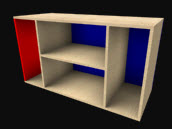
 

BTW – Are dado stack blades required?

Categories
Blog Contractor Demonstration Uncategorized Woodworking Business

Furniture Design Software – File Management

When someting goes wrong with your Furniture Design Software files…

I got an email from a user that we can turn into a bit of – as they say – a teaching moment.
“My computer just updated and now I have nothing…I have many projects that are just gone!  HELP!

computer destroyed

Our programmer linked into this user’s computer and found that something wierd happened to the file causing the customers  in that file  to be deleted.   It took about an hour but it was fixed.

The result was,  in the words of the user….

“Thanks for fixing this!  I was a little stressed…you guys rock!”

Now actually  the amount of emails related to file or disk failure is extremely low — like maybe one every month or so.  But disks do fail and files do become corrupt.  And the resulting work to get data back, if even possible, certainly justifies the time it takes to do some backup.

To help you better manage your SketchList 3D files I put togeter this video.
[responsive_vid]

However – the one, sure, rock solid thing I do (meaing it’s a good idea 🙂  ) is to export individual projects from SketchList 3D and save them to some external device.    Mine is a flash driture drive labeled “projects from furniture design software” work.   This way – if all else goes to, well, you can move these to another computer, or a new drive, or whatever.


More later,


Dave Rozewski

Categories
Blog Demonstration Home Office Design Uncategorized Woodworking Business

Home office – furniture design software 3d model


Finally it’s ALMOST finished.  I had been asked to put together a series of videos on one project.  I choose a desk that I might actually build someday.  The front assemblies – left and right – close back on the center unit.  The backs of those assemblies have five piece doors on them to make it look more like furniture.  It’s a case where woodworking software allows me to “build” something before I commit to it.  The shop drawings and optimized parts layout diagrams will help me do the planning.  Parts list and purchase lists – of course.

The real kicker is that the video accompanying this design is about 90 minutes long (bad – too long) BUT it is indexed so you can so directly to – for example face frames ( good – complete).

I noticed after that I overlooked hardware.  I will get to that and put on an extra segment.

If something is missing – let me know.

This video even covers file management – answering often asked questions like “How do I restore a file?”

Let me know what you think.

Thanks,


Dave

Categories
Demonstration

Furniture Design Software – Quick Insertion of Boards

In the world where time is money you are always looking for  faster  and better ways to do things.  As a SketchList  the 3-D user you are already designing in a fast and better  way.

But you can always find ways to use SketchList 3D more quickly.  The design tip  I’m writing about here comes up after sending hundreds of hours designing furniture using SketchList 3D.

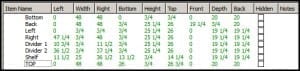
With SketchList  3-D woodworking design software the most basic and frequent process this to insert a board into an assembly.  There are, as you probably know, four steps. You pick the material, set the orientation, enter the sizes, and determine the brain direction. When I work with people designing a cabinet or DIY bookshelf for example I see that they spend most of the time in that third step – sizing the board.   You can almost see the wheels spin as they make out the exact location and size, especially when fractions are involved. It really doesn’t have to be thisCabinet Design Sfotware - Making Bookshelf hard. There is no real reason why you need to size the board during the board creation step. It is very logical do that – in terms of creating an assembly.
As the developer of that I can tell you I did it that way just because  that’s the way it seemed it should be.   But as you get accustomed to using the software, you can speed this step up a bit by skipping it!.

I put together a video in which I insert a top onto an existing assembly.  You will see that all that is required for the initial board definition is to pick the material, the orientation, and the grain direction.   No sizing necessary!

SketchList 3D  will create  a one inch cube and place it in the assembly at the point where the left, bottom, and front equal zero.  You can then go to the spreadsheet to enter the location and size information.   At the spreadsheet you can see information about the other boards and use that to locate and size the new board.  It is really easy and fast this way.

spreadsheet for board - cabinet design software

As you view the video – watch how I use the spreadsheet to calculate board sizes.  Sometimes I get email saying that there is too much math required – subtracting and adding fractions.  Well – all you need to do, as you will see, is to enter the end points, and click the column headings and SketchList 3D will do the adding and subtracting for you.  This is one thing that furniture design software should do!


Categories
Demonstration

Cutting Mitered Corners – Cabinet Design Software

An email arrived asking how to make a picture frame in SketchList 3D. The need was to put four boards together — cut a rabbet on the back inside edges — and put 45 degree corner cuts on each board. This question points out a consideration of board orientation that was overlooked in our documentation. You can put a mitered cut on an edge of a board using the integrated joinery function of our woodwork design software. However in the case of a picture frame, you are working with two adjacent surfaces of the board. One of the surfaces forms the edge of the board, the other is indeed what SketchList 3D refers to as the “surface”. You cannot apply to joinery (with the exception of the Dado) to a surface.

Picture frame and Cove Molding

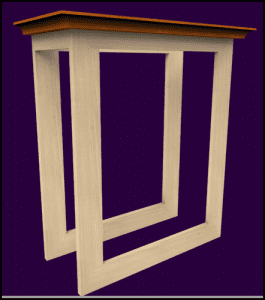
(I cloned the picture frame and made a bit of a table from the frame and the molding.)

So the way we achieve the structure like a picture frame is to put the joinery called rabbet on the edge, and used this shaping cool SketchList 3D on the adjoining surface. It’s much easier to see how this goes together if you view the following video.

If you go to LINK, you’ll see examples of making a picture frame and applying a cove molding within an assembly.

This video will also show how the same technique is used in creating a mitered cove moldings.

Of course you can make more complex shapes by changing the angle of the cuts.  You can, if you need to, make for example an octagon shaped frame for a window or mirror.  This flexibility is an example of how our woodworking design software is more flexible than the standard CAD systems or box type cabinet design software packages.