Categories
Blog Uncategorized

Built in Storage – Design and Built to Fit

Built in storage saves space and hides junk…

Built in storage, bookcase, and entertainment centers are really in demand.  Either for your personal use, or by the request of a prospect – these units are hot.  They are perfect for SketchList 3D because they tend to be large and complex, offer opportunities to use objects from the library, and tend to be a design and copy type of project.  A while back a survey showed us that nearly 60% of SketchList  3D users had designed at least one built in storage unit with the software.

This is a great example of the type of built in storage I’m talking about.   It rescues a lot of room area from a more or less otherwise hard to use corner of this bedroom.  And yet it fits in perfectly.  Why?

The ability to design on the computer provided the ability to try and try again with different approaches.  The ability to show such great details [angled corners, molding on top. drawer fronts] at the design stage gives you a sense of what you will accomplish.

Beyond the design stage go the reports and drawings necessary to pull the finished work off.

Well heck – let me share the email from this SketchList 3D user with you.

“Just wanted to send you some of the pictures of the built-in that I designed using SketchList 3D.  This was probably the largest most complex project I ever attempted and knew that I needed some drafting help.  I purchased SketchList 3D and began designing.  I don’t think there would have been any way for make all the design changes and construction details without SketchList 3D.  What was really great was the program which optimized and laid out the cutting diagrams for all of the sheets of plywood.  Rather than having to cut the 4 x 8 sheets of plywood in my small shop, I just gave them to my supplier who cut everything to size.  So for a small fee, I was able to save hours of wrangling large sheets of plywood into about 100 different pieces.  Thanks again for a wonderful product.”

What a great concept – asking the lumber yard to cut the sheets.  I am getting too old to ‘wrangle’ 4 x 8 sheets around anymore.

Thanks for the nice feedback Mike!  Question – will the dog let you pass?

If you have a design to share – send in a photo[s] and let me know what you’ve accomplished.

Categories
Blog Uncategorized

Furniture design software video – crown molding

This post and video will show how to make a mitered crown molding trim with SketchList 3D furniture design software.

We received an email this week from a user who is asking how SketchList 3D free furniture design software can be used to create a crown or cold molding. He also wanted to know how to take that molding and turn it around the corner by making a 45° miter cut.

The important thing to know about this is to pick the right orientation of the board when you insert it. The first board facing the front would have the same orientation as a shelf. This is to say the edge of the board would be facing forward the surfaces of the board facing up and down.

If you’ve created your cabinet without enough room on the left side and front side to fit the molding piece, you can use the batch move function at the project level to move all boards in the cabinet to the right by the necessary distance. This is usually the thickness of the molding piece. You can also use that same batch move function to move all of the board to the cabinet back away from the front edge of the assembly, again by the thickness of the molding piece.

Select the board the detail level. This can be done by double left mouse clicking the board. And click the contour button the SketchList form.  Select the contour you want to apply. Look at the contour as cut in the little viewing area of the contour form it may be facing the “wrong way”. If so change the radio button in the contour form from top to bottom or bottom to top.

When you’re done with that go back to the board detail level rotate board in the perspective view such that you can see the top surface. There be a green slice at the back of the board. Click on that with your mouse and click on the shape button. In the shaping tool click on the select button then click on the back left point on the board. The drag that number of units equal to the thickness of the board and you’ll achieve a 45° cut. Repeat the process with the right edge of the board.

Watch the video and you’ll see how I did it.

Categories
Blog Uncategorized Version 4

Cabinet design software — hide and show objects

Cabinet Design Software Needs the Ability to Hide and Show Objects….

SketchList 3D cabinet design software is continually evolving.   As we talk with users, conduct our surveys, and interact during our online training sessions we get lots of suggestions for improvements and new features.

When a suggestion makes sense and we decide to act upon it, our design team determines when and how we can best add it.

Well the latest group of suggestions included the ability to hide and show selected containers – assemblies, doors, and drawers.   This provides you the ability to not only  ‘see behind’ an object, but also work on under lying objects and design elements as if the hidden container did not exist.  You can also for example, hide a door temporarily and do a rendering for a client to show him or her how the shelves are laid out.  Another place where hiding is useful is when you are creating shop drawings.   For example you can hide a door and dimension the shelving behind that door.

The way to hide is straight forward.     Select the container you want to hide.  right click on the image of that container and select ‘hide selected’ from the menu list.Alternatively you can select the container – in the image area or as a spreadsheet row – can click on the  check box in the Hidden column.  To show again — un-check this box.

So if you have any suggestions – trying to improve our 3D cabinet design software – please send them into me.  Many of the features – any many improvement to features – within SketchList 3D came about from user input, suggestions, and yes even criticism.   If there is something you’d like to see in the product, of changed, send us an email.

[aio_button align=”center” animation=”none” color=”red” size=”small” icon=”film” text=”View You Tube Video” relationship=”dofollow” url=”https://youtu.be/yw66wfW6DDA”]

Thank you.


Categories
Blog Contractor Uncategorized Version 4 Version 4 Video Woodworking Business

Cabinet design software inserting shelf pin holes.

V4_hole_space

This is an introduction to holes and hole cloning in SketchList 3D cabinet design software.

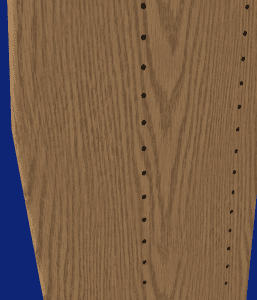
This is a very useful feature if you are using shelf pins in your cabinetry. The basic process is to take a board and insert a hole at your first location.

When the hole is set up the way you want exit the form.  Next click on the edit holes button.  When the hole spreadsheet opens right-click on the row containing information about the hole you want to clone.  Pick clone and space from the menu list that opens.

Enter the number of holes you want to insert and the space between the holes.  Select if you want to clone horizontally or vertically.  You will see that SketchList 3D equally spaces those holes on the center line of the holes.   Exit the form.

At this point you might clone the existing holes but sometimes it is just easier to create another new hole for second line of shelf pin holes.

This basically involves repeating the process described above.

When finished do a ‘clone and mirror’ to make a mirror image copy with the shelf pin holes on the inside surface of the board.

Categories
Blog Contractor Uncategorized Version 4 Version 4 Video Woodworking Business

Not Only Cabinet Design Software – Design Almost Anything

Realistic Images in cabinet design software

Not limited to cabinet design software.  How Would You Like a TV, Painting,  or Fireplace..in your design?

Since I published the blog post showing and telling about William LaRue’s  built-in bookcases I’ve gotten several e-mails asking:  “Well how did he do that”?  First answer – he’s real smart.  Second answer – smart enough to buy SketchList 3D.

Well today I put together a video to show you at least in part how he did that.   His proposal to his client was very detail and very complex. The attached video shows how I took an image of a television and imported that image into SketchList 3D as a new material.

Then I took that material and set  its size  to 30 inches wide by 20 inches tall both in the horizontal and vertical scale section of the new material dialogue, and in the material size window.

Inserting a board into an assembly I picked the material called  TV for that board.  Using the flat orientation with the grain direction running top to bottom I size that board to be 20 inches tall and 30 inches deep.

You can see the result of the board in the image the top of this blog post.  The next steps had to do with putting on a black material as sides and back onto the television.

It’s really not that difficult and if you tried a few times you will get it.  When I first started this I had some of the grain directions incorrect and maybe the scaling factors were off a bit.  As I learned and adjusted it became almost trivial to create these objects.
It seems that you can do just about anything that has flat surface.   In fact for the stove that I have in my appliance library I used an image of the front of the stove for the front, and I took an image of a top of the stove with the burners and use that as the top of the stove.   Sandwiched between two base cabinets it looks very realistic.  So I guess like the headline says – SketchList 3D is really more than cabinet building software.  But of course it does that very well also.

When I get a bit more time I’m going to experiment taking some photos of objects with a green background.   My editing software allows me to then drop that green off so the image will stay with no background. I’m thinking of something like a trophy that you might put on the mantle or a mantle clock.

As we start planning for version 5 of SketchList 3D  it may very well be that we can have the ability to import real CAD files and create real 3-D objects in your cabinet design software.  The development jury is still debating that one.

Send me an e-mail and let me know how it goes.   Anyone else up for pasting a blog / story about SketchList 3D?


Categories
Blog Contractor Uncategorized Version 4 Woodworking Business

Cabinet Design Software Enables Face Frame Placement

Face Frame on Case

How to place face frames on your case work.

Had an good online training session Saturday morning with a few SketchList 3D users.  Covered placing objects and moved onto joinery – dado placement on board surfaces.   One user wrote in that it helped him along and still had a question on face frames.

So here is a video on using the cabinet making software for putting frames onto your case work.  It is basically a matter of placing – in this case – five boards on the front.  Remember the ‘back’ value of the frame must equal the ‘front’ value of the case boards!  In addition you use the FLAT orientation for frames – since you are looking at the assembly from the front and want to see the rail or stile surface and not its edge.  Grain direction – usually – is width for rails and height for stiles.  Match up the various lefts and rights, tops and bottom and you will be all set.

What I forgot!  Of course you can contour the corners of the frames and / or miter them as well.  They are just like any other board in SketchList 3D.

Categories
Blog Uncategorized Version 4 Woodworking Business

Cabinet Design Software Helps User Design Projects

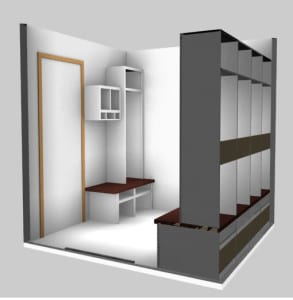
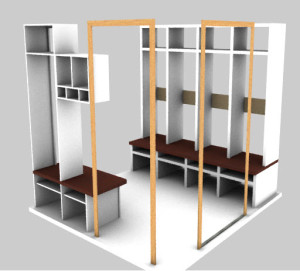
lockers design 2

Email sharing a story of how cabinet design software aids work…

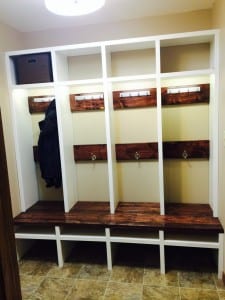
Got this email with some very nice photos of work that Pieter Minnaar did in SketchList 3D AND in the shop – of course.

He wrote:

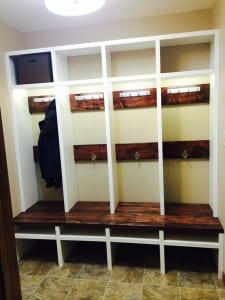
“I recently used your V3 software very successfully in creating built in Lockers for our mudroom. I will include photos of the design and how it turned out at the bottom of the e -mail.

lockers design 1

finished lockersphoto 2 of lockers

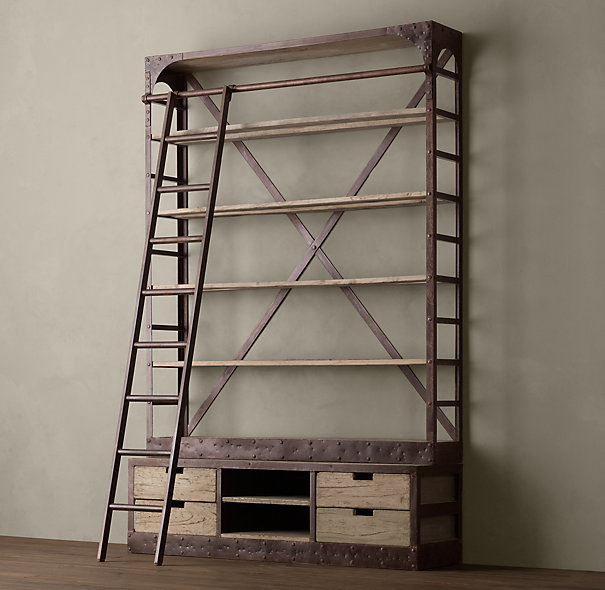
I’m very impressed with the software and when the opportunity came by to get the Pro version of the new V4 I grabbed it and bought your V4.  I now have a new project–> building three Bookcases (shelving) I will include a photo of the inspiration to my new design.

A big part of these shelves will be angle Iron.  Unfortunately I’m really struggling to design this hardware (angle Iron).  Can you please help me with this? I did try your vid but didn’t quite get it right.
The angle Iron needs to be 1 1/2″ by 1 1/2″ and of variable lengths.
 proposed shelving
Thanx in advance for your help.”
It’s interesting because this is the second time in about a week that I’m doing a project with angle iron parts.
I did a quick video to show how to do this.
Just as I uploaded this to You Tube I realized I didn’t show how to re-size it.   You go into the hardware level and just enter new values for height or top.  You can also, I think, stretch or shrink at an assembly level.  Think about it a bit – you’ll get it right.  also rotate the hardware is very useful also but that is in the video.
The photos follow.


Categories
Blog Uncategorized Version 4 Woodworking Business

Furniture Design Software – Using Slider Bars

Slider Bars to Move and Size

Ability to Slide Objects in 3D Speeds Design

Immediate visual feedback on design changes is critical to furniture  design software productivity.  The ability to try different options and ideas and instantly see their image vastly improves your design and product.

With version 4 of the SketchList 3D  furniture design software we have achieved this ability of sliding objects back and forth up and down right and left on your screen.  But more than that we’ve integrated the parametric approach of typing in specific values (for example 14 7/16 ) to get to a specific place in your three dimensional models.

This is truly a feature  which is better experienced and seen then talked about. A picture may be worth 1000 words but with the sliders with video  is worth everything.

Take a look at this video to see what I mean.

[responsive_vid]


Categories
Blog Uncategorized Version 4 Woodworking Business

Furniture Design Software – Manipulate those Assemblies

Reception Desk in Cabinet Design Software

Achieving design flexibility while saving time

With sketch list 3-D furniture design software you can  create designs that meet your customers needs. The flexibility provided by manipulating a virtual boards on the screen, along with the instant visual feedback  of the shape and proportion of your the design allow you to explore many  alternative approaches for your design.   Because it is quick to design using this virtual board concept you can accomplish a lot in the minimum amount of time.

One powerful addition to the SketchList 3D toolbox is the clone and mirror function.  What it does is to make an exact copy of an assembly with one exception.  That exception being that everything  in the assembly is changed left to right.  Take a look at the reception desk in the image beginning of this post.  The reception desk started as one unit  – that towards the left-hand side  – that was curved and shaped as a bit of a quarter circle  desk.  Cloning and mirroring the first assembly allowed the design to go from a quarter circle to a semi-circle in two mouse clicks – literally taking a second or two.

A commonly used application of clone and mirror is an entertainment or bookshelf unit. You may create one assembly with,  for example,  doors to the left and shelves to the right.  For the second assembly  you want to  put the doors on the right and the shells to the left. You have three choices.

  1. You can completely rebuild the entire assembly.
  2. You can clone the us existing assembly and manually move the doors and shelves.
  3. Or you can choose clone and mirror.  after the clone and mirror of course you need to slide the assembly to the right or left to locate it where desired.

This video shows how I cloned and mirrored the quarter circle  reception desk turning it into a semi circular unit.   One of the key advantages of using  software for your furniture design efforts  the ability to  save time while  exploring many alternative designs to achieve the best  solution for your customer.


Take a look….